إعداد eSIM · Samsung Galaxy
قائمة هواتف Samsung بـ eSIM ودليل إعداد Galaxy
لإضافة eSIM إلى جهاز Samsung Galaxy، افتح الضبط › الاتصالات › إدارة SIM، اضغط إضافة eSIM › مسح رمز QR ضوئيًا، وامسح رمز QR من رسالة HelloRoam الإلكترونية. ثبّتها في المنزل خلال نحو دقيقتين، ثم فعّلها عند وصولك.
هاتفك
اختر طريقة تثبيت eSIM على Galaxy
أين رمز QR الخاص بك؟ اختر إحدى الطريقتين، وسنعرض لك الخطوات المناسبة. كلتاهما تستغرقان نحو دقيقتين.
قبل أن تبدأ
0 من 4 جاهزةتثبيت eSIM على Samsung Galaxy برمز QR
فريقنا متاح على مدار الساعة إن احتجت مساعدة أثناء الإعداد.
افتح الضبط › الاتصالات، ثم اضغط إدارة SIM.
في إصدارات One UI الأقدم، قد تُسمى إدارة SIM «مدير شريحة SIM»، وإضافة eSIM «إضافة باقة محمول». قد تختلف أزرار أخرى أيضاً، لذا اتّبع التعليمات الظاهرة على شاشتك.
اضغط إضافة eSIM.
اضغط مسح رمز QR ضوئيًا لفتح الماسح الضوئي.
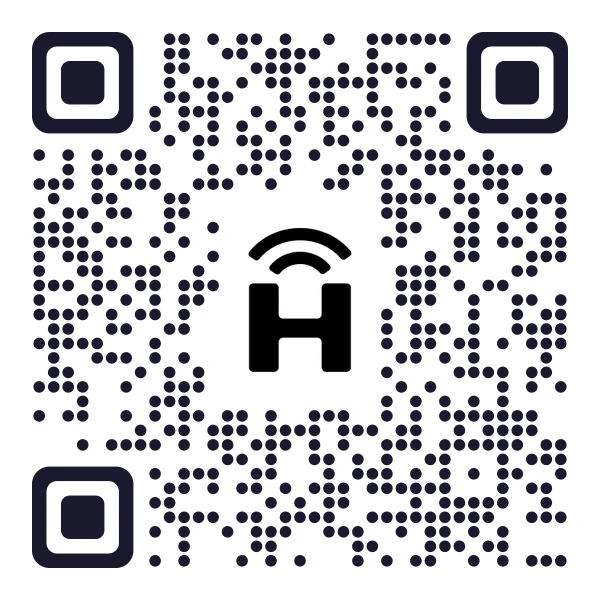
وجّه كاميرا Galaxy نحو رمز QR المعروض على الشاشة الثانية.
اعرض الرمز على شاشة مضيئة، واجعله يملأ المربع بالكامل.
انتظر بينما يقرأ Galaxy الرمز. بعدها سيسألك إن كنت تريد إضافة eSIM.
اضغط إضافة. حافظ على اتصال Wi-Fi أثناء تنزيل eSIM، فقد يستغرق ذلك بضع دقائق.
اضغط eSIM 1 وسمِّها HelloRoam. ثم ضمن بطاقة SIM المفضلة، اضبط بيانات الهاتف المحمول على HelloRoam.
كل الخطوات (7)
ثبّت eSIM من رسالتك على هذا الـ Galaxy
فريقنا متاح على مدار الساعة إن احتجت مساعدة أثناء الإعداد.
افتح رسالة HelloRoam الإلكترونية على هذا الهاتف واضغط تثبيت eSIM لأجهزة Android 10+. أو اضغط ثبّت eSIM الآن في تطبيق HelloRoam بدلاً من ذلك.
اضغط إضافة. حافظ على اتصال Wi-Fi أثناء تنزيل eSIM، فقد يستغرق ذلك بضع دقائق.
اضغط eSIM 1 وسمِّها HelloRoam. ثم ضمن بطاقة SIM المفضلة، اضبط بيانات الهاتف المحمول على HelloRoam.
كل الخطوات (3)
إضافة eSIM إلى Samsung Galaxy برمز التفعيل
فريقنا متاح على مدار الساعة إن احتجت مساعدة أثناء الإعداد.
افتح الضبط › الاتصالات › إدارة SIM.
في إصدارات One UI الأقدم، قد تُسمى إدارة SIM «مدير شريحة SIM»، وإضافة eSIM «إضافة باقة محمول». قد تختلف أزرار أخرى أيضاً، لذا اتّبع التعليمات الظاهرة على شاشتك.
اضغط إضافة eSIM.
اضغط مسح رمز QR ضوئيًا. يُفتح الماسح الضوئي، لكنك لن تمسح رمزاً.
من شاشة الماسح، اضغط على إدخال رمز التفعيل.
انسخ رمز التفعيل الكامل من بريد HelloRoam والصقه في الحقل المخصص. تابع العملية وانتظر لحظة. الرمز يبدو هكذا: LPA:1$operator.com$ABCDE-12345
الصق الرمز ولا تكتبه يدوياً. أي حرف خاطئ يجعل الرمز مرفوضاً.
اضغط إضافة. حافظ على اتصال Wi-Fi أثناء تنزيل eSIM، فقد يستغرق ذلك بضع دقائق.
اضغط eSIM 1 وسمِّها HelloRoam. ثم اضبط بيانات الهاتف المحمول على HelloRoam.
كل الخطوات (7)
كيفية تفعيل eSIM على Samsung
عند وصولك، شغّل خط HelloRoam من إدارة SIM، ثم فعّل البيانات أثناء التجوال لخط HelloRoam من شبكات المحمول، وأوقفه عن SIM 1، شريحتك الرئيسية.
افتح الضبط، ثم اضغط على الاتصالات، ثم إدارة SIM للعثور على ملف تعريف HelloRoam eSIM المثبّت.
شغّل خط HelloRoam. ثم في شبكات المحمول، شغّل البيانات أثناء التجوال.
في بعض هواتف شركات الاتصالات الأمريكية، يُسمى هذا المفتاح «Data Roaming Access».
في شبكات المحمول، اختر SIM 1، شريحتك الرئيسية. أوقف البيانات أثناء التجوال. عندها لن يتمكن مشغلك الأساسي من فرض رسوم تجوال عليك.
أصبحت eSIM نشطة. افتح أي تطبيق للتأكد من وجود اتصال بالبيانات.
معلومة مفيدة
- فعّل وضع الطيران أولاً، ثم شغّل Wi-Fi. هذا يمنع مزود الخدمة الأصلي من محاسبتك على رسوم إضافية.
- انتظر حتى تصل إلى وجهتك قبل التفعيل. تحتاج eSIM إلى شبكة محلية للاتصال بها.
كل الخطوات (4)
- فعّل وضع الطيران أولاً، ثم شغّل Wi-Fi. هذا يمنع مزود الخدمة الأصلي من محاسبتك على رسوم إضافية.
- انتظر حتى تصل إلى وجهتك قبل التفعيل. تحتاج eSIM إلى شبكة محلية للاتصال بها.
تحقق من عمل eSIM على Samsung Galaxy
طريقتان سريعتان للتحقق:
تحقق من شريط الحالة. يجب أن ترى شريط إشارة واحداً على الأقل بجانب خط HelloRoam.
افتح الضبط › الاتصالات › شبكات المحمول. تحقق أن البيانات أثناء التجوال مفعّل لخط HelloRoam.
مساعدة على مدار الساعة لشريحة eSIM في Galaxy
ما زلت بحاجة إلى مساعدة؟ فريقنا متاح 24/7 عبر البريد الإلكتروني وواتساب والدردشة المباشرة وداخل التطبيق.
أسئلة شائعة عن eSIM على Samsung Galaxy
الأسئلة الأكثر شيوعاً بين مستخدمي Galaxy قبل التثبيت وبعده.
جرى التحقق من هذه الخطوات على One UI 7 وOne UI 8 ومطابقتها مع Samsung Support.
ما هي طرازات Samsung Galaxy التي تدعم eSIM؟
تشمل قائمة Samsung الرسمية لهواتف eSIM سلسلة Galaxy S20 حتى S26، ومنها S25 Edge وS23 FE حتى S26 FE. كما تضم الأجهزة القابلة للطي من Galaxy Fold وZ Flip الأول وصولاً إلى Z Fold8 وZ Fold8 Ultra وZ Flip8 وZ Flip7 FE وZ TriFold. تدرج Samsung الأمريكية أيضاً سلسلة Note 20. من هواتف Galaxy A التي تدعم eSIM: A57 وA56 وA55 وA54 وA37، وبعضها يقتصر على مناطق معينة. تدعم أجهزة Galaxy Tab S9 وTab S10 وTab S11 ذات بيانات الجوال eSIM أيضاً. تنبّه Samsung إلى أن بلد منشأ الجهاز قد يستثنيه من eSIM حتى لو كان مدرجاً في القائمة، لذا تحقق من ظهور «إضافة eSIM» في إدارة SIM قبل شراء باقتك.
أين توجد إدارة SIM في Samsung Galaxy؟
يوجد مسار إدارة SIM في هواتف Samsung Galaxy ضمن الضبط > الاتصالات > إدارة SIM في معظم الطرازات. في إصدارات One UI الأقدم، قد يظهر باسم «مدير شريحة SIM» ضمن المسار نفسه. إن لم تجده، اكتب «إدارة SIM» في شريط البحث داخل الضبط وسيظهر خلال ثوانٍ.
هل يمكن إضافة eSIM إلى Samsung دون رمز QR؟
يمكنك إضافة HelloRoam eSIM إلى Samsung بدون مسح رمز QR عبر الإدخال اليدوي من الضبط. افتح الضبط، ثم الاتصالات، واضغط إدارة SIM، ثم إضافة eSIM، ثم مسح رمز QR ضوئيًا، ثم إدخال رمز التفعيل. الصق رمز التفعيل الكامل من رسالة تأكيد HelloRoam، ثم اضغط إضافة. يصل الرمز في تلك الرسالة خلال 5 دقائق من الشراء.
هل يعمل Samsung Galaxy S24 بشريحتَي eSIM؟
تدعم Galaxy S24 وS24+ وS24 Ultra ميزة الشريحة المزدوجة (Dual SIM) بشريحة فعلية واحدة وeSIM واحدة، وتسمّيها Samsung eSIM الهجين (Hybrid eSIM). تدرج Samsung سلسلتَي S25 وS26 بالطريقة نفسها. أبقِ شريحتك الرئيسية في الدرج وأضف HelloRoam كـ eSIM، ليبقى رقمك نشطاً بينما يتولى HelloRoam بياناتك. أدِر كلا الخطَّين من الضبط > الاتصالات > إدارة SIM.
لماذا لا يقرأ هاتف Samsung رمز QR لشريحة eSIM؟
جرّب هذه الحلول الأربعة إن لم يقرأ هاتف Samsung رمز QR الخاص بـ eSIM: حدّث One UI، وتأكد أن الهاتف غير مقفل على شركة اتصالات، ونظّف عدسة الكاميرا، وامسح الرمز في إضاءة جيدة من مسافة 15 سم تقريباً. إن لم ينجح أيٌّ من ذلك، استخدم الإدخال اليدوي: افتح إدارة SIM، واضغط إضافة eSIM، ثم مسح رمز QR ضوئيًا، ثم إدخال رمز التفعيل. الصق رمز التفعيل الكامل من رسالة HelloRoam. وإن فشل الإدخال اليدوي أيضاً، راسلنا على help@helloroam.com.
ما هي هواتف Samsung التي لا تدعم eSIM؟
هذه هواتف Galaxy تعمل بشريحتين ماديتين فقط ولا تظهر في قائمة Samsung الرسمية لهواتف eSIM: S20 FE وS21 FE وA02 وA03 وA12 وA13 LTE وA13 5G وA14 5G وA15 5G وA32 5G وA42 5G وA52 5G وA53 5G. تدرجها Samsung الأمريكية ضمن طرازات الشريحة المزدوجة المادية (Dual Physical SIM). تقول Samsung أيضاً إن أي طراز مدرج في قائمة eSIM قد يفتقدها فعلياً بحسب بلد المنشأ. للتأكد من هاتفك، افتح الضبط > الاتصالات > إدارة SIM. إن ظهر خيار «إضافة eSIM»، يمكنه استخدام HelloRoam eSIM. وإن لم يظهر، فهذا الهاتف لا يمكنه إضافة eSIM.
كيف أنقل eSIM من iPhone إلى Samsung؟
لا يمكن نقل HelloRoam eSIM من iPhone إلى Samsung بعد تثبيتها. مسح رمز QR الخاص بها مرة أخرى على Samsung لا يعمل، وكذلك ميزة نقل eSIM المدمجة في الهاتف. لا تحذف eSIM من iPhone. قبل أول اتصال لها بشبكة تغطيها باقتك في وجهتك، راسلنا على help@helloroam.com، ويمكننا إصدار eSIM جديدة لك. تثبيتها في المنزل لا يُحتسب اتصالاً أولاً. إن أصدرنا لك eSIM جديدة، أضفها على Samsung من الضبط > الاتصالات > إدارة SIM > إضافة eSIM. بعد أول اتصال، لا يمكن استخدام رمزها مرة أخرى، ولا نُصدر eSIM جديدة عند تغيير الهاتف.
يظهر على هاتف Samsung عبارة «شريحة SIM أوروبية فقط». هل يمكنني استخدام eSIM؟
تحقق من هاتفك قبل شراء الباقة، فدعم eSIM يختلف من جهاز إلى آخر. تقول Samsung إن eSIM قد لا تكون مدعومة، بحسب بلد المنشأ، حتى على طراز Galaxy مدرج في قائمتها الرسمية. افتح الضبط > الاتصالات > إدارة SIM. إذا ظهر خيار «إضافة eSIM»، يمكنك تثبيت HelloRoam eSIM هناك. وإذا لم يظهر هذا الخيار، فلا يمكن لهذا الهاتف إضافة eSIM.
ما طرازات Galaxy A التي تدعم eSIM؟
تذكر قائمة Samsung الرسمية لهواتف eSIM طرازات Galaxy A57 وA56 وA55 وA37 دون أي قيود على المنطقة. أما A54 فتتوفر فيه eSIM في أوروبا وأمريكا الشمالية وكوريا واليابان فقط، وA36 وA35 في أوروبا وأمريكا الشمالية وكوريا فقط. تقتصر eSIM في A27 وA26 وA17 5G وA16 5G على أمريكا الشمالية، بينما تقتصر في A25 5G وA23 5G على اليابان. الطرازات الأقدم مثل A15 5G وA53 5G تعمل بشريحتين ماديتين بدلاً من eSIM. للتأكد من جهازك، افتح الضبط > الاتصالات > إدارة SIM وابحث عن خيار «إضافة eSIM».
كيف أعرف استهلاك بيانات eSIM على Samsung Galaxy؟
افتح الضبط، ثم اضغط الاتصالات، وابحث هناك عن شاشة استهلاك البيانات التي تعرض أكثر التطبيقات استهلاكاً لبيانات الجوال. يحسب Galaxy الاستهلاك من بداية دورة الفوترة التي تضبطها أنت في تلك الإعدادات، لا من يوم بدء باقة HelloRoam. لمعرفة ما تبقى من بيانات باقتك، افتح تطبيق HelloRoam وتحقق من تبويب «شريحتي».
اكتشف المزيد
وجهات eSIM الشائعة

 المكسيك
 المغرب
 الولايات المتحدة
 اليابان
 تركيا
تركيا 
 الصين
الصين 
 الإمارات
 فرنسا
فرنسا ثبّت eSIM على Samsung Galaxy مع HelloRoam
حمّل تطبيق HelloRoam وثبّت eSIM على هاتف Samsung Galaxy في دقائق. لا حاجة لتبديل الشريحة.