Travel eSIM guide · Data calculator
How Much Data Do I Need for My Trip?
On light use, a traveller needs about 3.2 GB of mobile data a week. That covers maps, chat, browsing, music, photo feeds, short videos and app updates. Buy at least 3.9 GB for busy days. Daily video calls and streaming push a week to about 26 GB. Set your own hours in the HelloRoam Travel Data Calculator below.
HelloRoam Travel Data Calculator
Pick how long you're away, then set your daily hours. The total moves with every change.

Key numbers for travel data Based on the calculator's rates
- Light use for a week away
- 3.2 GB buy 3.9 GB to be safe
- A week of calls and streaming
- 26 GB the Remote worker preset, over a week
- HD video, per hour
- 1.4 GB Between the SD and HD hourly figures on Netflix's help page.(1)
- One-on-one video calls, per hour
- 520 MB on WhatsApp or FaceTime, or about 53 MB for a voice call
- Maps, per hour
- 10 MB A small slice next to video or calls
- Short-form video, per hour
- 600 MB while you scroll TikTok, Reels or Shorts
- HelloRoam reaches
- 185+ destinations, 212+ networks
Your data total adds up day by day, from a long weekend to a month away
Three days of light use comes to about 1.4 GB. A month as a remote worker reaches about 112 GB. Find your trip length in the table, then read across to the column that fits how you use your phone.

| Trip | Casual traveller (light use) | Buy at least this (Casual traveller) | Remote worker (heavy use) | Buy at least this (Remote worker) |
|---|---|---|---|---|
| Long weekend, 3 days | 1.4 GB | 1.7 GB | 11 GB | 14 GB |
| One week, 7 days | 3.2 GB | 3.9 GB | 26 GB | 32 GB |
| Two weeks, 14 days | 6.4 GB | 7.7 GB | 52 GB | 63 GB |
| One month, 30 days | 14 GB | 17 GB | 112 GB | 135 GB |
- Casual traveller, per day
- 15 mins browsing photo feeds, 15 mins short-form videos, 1 hr music, 30 mins maps, 1 hr web browsing, 30 mins messaging apps and email, 30 mins app updates
- Remote worker, per day
- 1 hr browsing photo feeds, 1 hr streaming HD video, 2 hrs music, 30 mins maps, 1 hr web browsing, 1 hr messaging apps and email, 2 hrs group video calling, 30 mins app updates
Will a 10 GB plan last a 2-week trip overseas?
Yes: a 10 GB plan covers two weeks of light use. Two weeks of maps, chat, browsing, music, photo feeds, short videos and app updates comes to about 6.4 GB. Add our 20% margin for busy days and buy 7.7 GB. Daily video calls and streaming push two weeks to about 52 GB. For that, take calls on Wi-Fi or pick an unlimited plan. Fair-use terms apply.
A 10 GB plan
Buy a plan that covers your total plus 20%, so one busy day doesn't leave you short. With your number sorted, browse plans by destination.
A month of daily video calls and streaming runs past our largest fixed plan of 50 GB. Take calls on Wi-Fi where you can, or pick an unlimited plan. Fair-use terms apply. Heading off on a long OE? See our guide to long stays and remote work.
Each travel app has its own hourly data cost
Chat apps and email barely register at about 3.3 MB an hour, while HD video sits at about 1.4 GB. Each row is the calculator's planning rate for one hour of that activity.
| Activity | Data per hour | 1 hour a day for 7 days |
|---|---|---|
| Browsing photo feeds, such as Facebook and Instagram | 110 MB | 770 MB |
| Short-form videos, such as TikTok, Reels and YouTube Shorts | 600 MB | 4.2 GB |
| Video streaming in HD, such as YouTube, Netflix | 1.4 GB | 9.8 GB |
| Music streaming, such as Spotify, Apple Music | 90 MB | 630 MB |
| Maps and directions, such as Google Maps, Apple Maps, Waze | 10 MB | 70 MB |
| Web browsing | 47 MB | 330 MB |
| Messaging apps and email, such as iMessage, WhatsApp, Gmail | 3.3 MB | 23 MB |
| Voice calls over apps, such as WhatsApp and FaceTime Audio | 53 MB | 370 MB |
| One-on-one video calls, such as FaceTime and WhatsApp | 520 MB | 3.6 GB |
| Group video calling, such as Google Meet and Zoom | 930 MB | 6.5 GB |
| App downloads and updates | 270 MB | 1.9 GB |
These are planning rates, not exact meters. Your settings change the real number: the video row assumes HD, and the video call rows assume your camera stays on.
How we turn an app's speed into data: one megabit per second for an hour is 450 MB, because a byte is eight bits.(8) A call counts what you send plus what you get back.
TikTok, Reels and Shorts come to about 600 MB an hour
StarHub, a Singapore mobile provider, puts TikTok at about 840 MB an hour on default settings and about 360 MB in Data Saver mode.(7) The calculator counts 600 MB an hour, in between. Switch on the app's data saver before you scroll on mobile data.(7)
Photo feeds on Instagram and Facebook run at about 110 MB an hour
Scrolling photos costs far less than video. Singapore provider StarHub puts an Instagram photo feed at about 120 MB an hour, and a mix of Stories and Reels at about 600 MB an hour.(7) The calculator counts 110 MB an hour for photo feeds, so log Reels time as short-form videos.
YouTube in HD runs at about 1.4 GB an hour
Google suggests 1.1 Mbps for 480p video, 2.5 Mbps for 720p and 5 Mbps for 1080p.(4) Over an hour, that's about 500 MB, 1.1 GB and 2.3 GB. Our HD row counts 1.4 GB an hour, between 720p and 1080p, so pick 480p on mobile data to use roughly a third as much.
Netflix can use up to 3 GB an hour in HD, and about 250 MB on Automatic
Netflix lists Low at up to 300 MB an hour, Medium at up to 700 MB and high definition at up to 3 GB.(1) On a phone, its Automatic setting gives about 4 hours per GB, roughly 250 MB an hour.(1) The calculator's HD row counts 1.4 GB, so lower the setting to stretch a small plan.
Google Maps directions use roughly 10 MB an hour
Going by StarHub's figures from Singapore, Google Maps navigation uses about 5 MB an hour and Satellite View about 150 MB an hour.(7) Plain directions stay light, so keep Satellite View switched off on mobile data.
A WhatsApp or FaceTime video call takes about 520 MB an hour
StarHub in Singapore puts a one-on-one WhatsApp video call at about 250 MB an hour.(7) Zoom lists 600 kbps each way for a high-quality one-on-one call, about 540 MB an hour.(6) The calculator counts 53 MB an hour for a voice call in an app. Switch the camera off and a call uses about a tenth of the data.
Group calls on Zoom and Google Meet run at about 930 MB an hour
A group call sends your video and brings in everyone else's. Zoom lists 1.0 Mbps up and 600 kbps down for high-quality group video.(6) For individuals and small teams, Google lists a Meet group meeting at up to 4.0 Mbps down.(3) The calculator counts 930 MB an hour, so take long meetings on Wi-Fi when you can.
This calculator counts Spotify at about 90 MB an hour
Spotify's Normal setting streams at about 96 kbit/s, High at 160 kbit/s and Very high at 320 kbit/s, Spotify says.(5) That's roughly 43 MB, 72 MB and 144 MB an hour. The calculator counts 90 MB, so set mobile streaming to Normal and download playlists on Wi-Fi before you leave NZ.
How far each plan size stretches on a trip
On light use, 5 GB lasts about 10 days and 10 GB about 21 days. So a 5 GB plan covers a light week with at least 20% to spare. HD video gets through 1 GB in about 45 minutes, and maps in about 100 hours.
| Data on the plan | Days it lasts (light use) | Maps | Browsing photo feeds | Short-form videos | Streaming HD video | One-on-one video calls |
|---|---|---|---|---|---|---|
| 1 GB | 2 | 100 hrs | 9 hrs | 1 hr 45 mins | 45 mins | 2 hrs |
| 3 GB | 6 | 300 hrs | 27 hrs 15 mins | 5 hrs | 2 hrs 15 mins | 5 hrs 45 mins |
| 5 GB | 10 | 500 hrs | 45 hrs 30 mins | 8 hrs 15 mins | 3 hrs 30 mins | 9 hrs 30 mins |
| 10 GB | 21 | 1,000 hrs | 91 hrs | 16 hrs 45 mins | 7 hrs 15 mins | 19 hrs 15 mins |
Most destinations have our fixed plans of 1 GB for 7 days and 3, 5, 10 and 20 GB for 30 days. Go for the smallest one that covers your estimate plus 20%.
Streaming video and video calls eat up the most data
What chews through data fastest overseas?
Video drains data fastest: an hour of HD streaming uses about 1.4 GB. A group video call takes about 930 MB an hour, short-form videos about 600 MB and a one-on-one video call about 520 MB. Maps need only about 10 MB an hour. A whole light day of maps, chat, music, browsing, photo feeds, short videos and app updates comes to about 0.46 GB.
Save offline maps while you still have Wi-Fi
On Wi-Fi at home, save map areas in Google Maps for each place you'll visit. With no connection, a saved map still gives driving directions inside that area, but not walking, cycling or transit routes.(9) Google says offline maps can't be downloaded in some countries or regions.(9) If you'll walk, cycle or ride transit, or can't save a map, set your hours for maps in the calculator.
Drop the streaming quality on mobile data
In the Netflix app, go to My Netflix, tap your profile name, then App Settings, and choose Cellular Data Usage under Video Playback.(1) Save Data streams about 6 hours per GB, but Maximum Data can use 1 GB every 20 minutes or more.(1) Netflix explains each option in its data settings guide.
Turn on Low Data Mode or Data Saver for the trip
On iPhone, Low Data Mode pauses background tasks, and you can switch it on for the travel line alone.(10) On a Pixel, Data Saver keeps most apps' background data to Wi-Fi.(11) On a Samsung Galaxy, find Data saver under Settings > Connections > Data usage.(12)
Save app updates and photo backups for Wi-Fi
Switch app updates and photo backups to Wi-Fi only before you fly. The Casual traveller profile still counts some app updates each day, at about 270 MB an hour, so this one change can bring your real use under the estimate. On iPhone, Low Data Mode also pauses automatic updates and iCloud Photos.(10)



Using less data also keeps the cost of your trip down. Our guide to budget travel data has more ideas.
Your phone tracks every app's data, and you can set limits on iPhone and Android
Your phone counts the mobile data each app uses, so check a normal month in NZ before you size your trip. If you're with 2degrees, its app shows your balance and usage too.(13) A travel eSIM is a separate data line, and your phone uses one line for mobile data at a time.(14)(15) Your NZ provider may count usage a little differently, so ask it for the exact figure.(16)(17) Read how a travel data line works, or see what the same data costs on roaming.

Check it on an iPhone
Go to Settings, tap Mobile Service (some of Apple's NZ pages say Mobile or Cellular), then Show All to see the data each app used.(14)(17)(18) Take a recent month, divide it by 30, and compare that day with your trip estimate. To use less, turn off mobile data for apps you won't need on the trip.(17) Keep Allow Mobile Data Switching off, or your iPhone can use data from both plans.(14)
Check it on a Pixel or Galaxy
On a Pixel, go to Settings > Network & internet > SIMs, tap App data usage, then use the Down arrow to pick a time period.(16) Data warning & limit on the same screen can alert you, or switch mobile data off at the amount you set.(16) On a Samsung Galaxy, open Settings > Connections > Data usage > Mobile data usage to see which apps use the most data.(12) With two SIMs, make sure mobile data runs on the travel line.(15)
Check it in our app
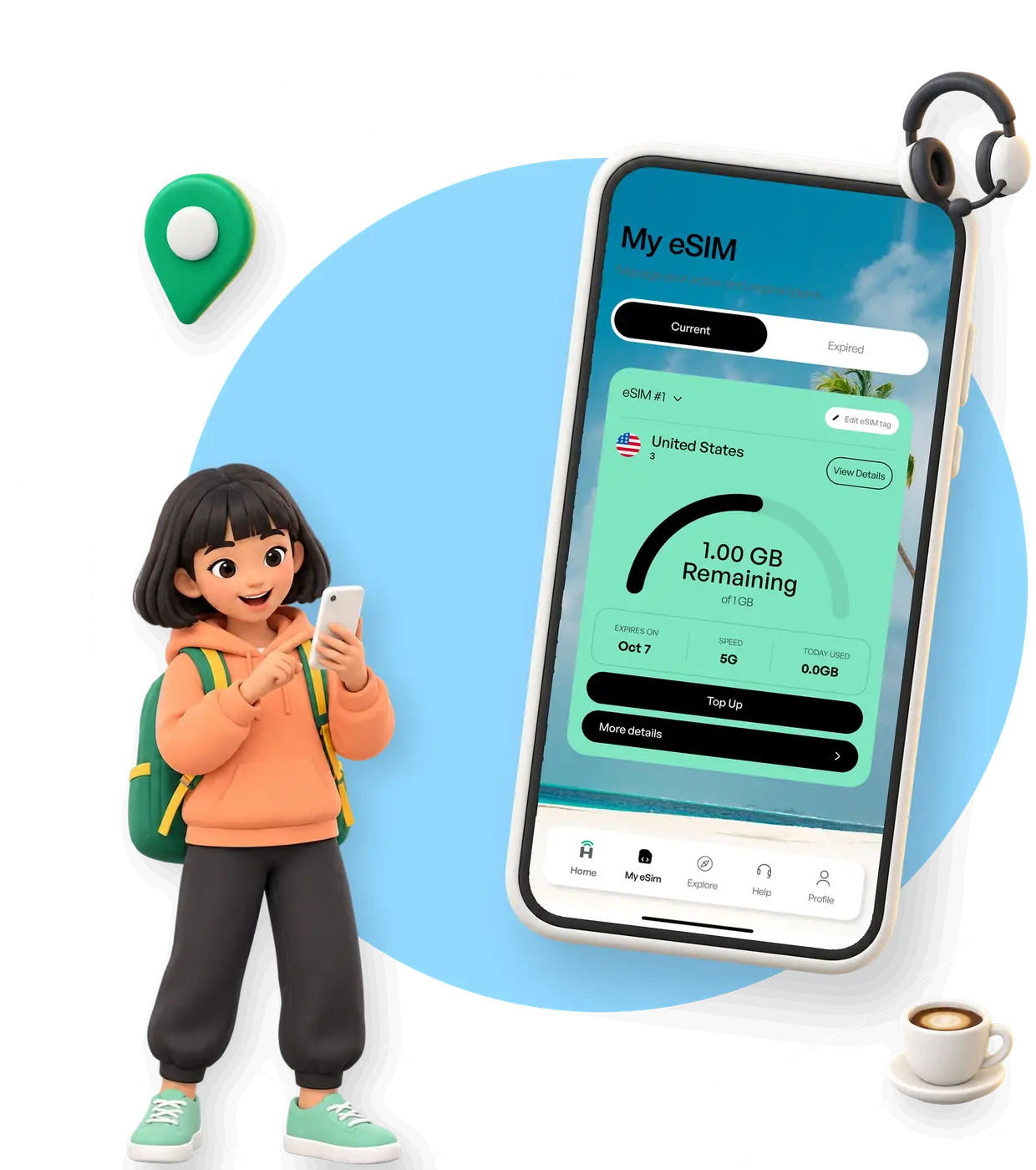
Open My eSIM in the HelloRoam app: each eSIM's card shows the data left, or Unlimited on an unlimited plan, plus its Expires on date. Networks report use with a delay, so the figure can run up to 3 hours behind. On a fixed plan, we email you as your data runs low, and you can tap Top up on the card where your plan allows it.
Each activity has a data rate, and your hours set the total

How can I work out how much data I'll use?
Multiply each app's hourly rate by your hours a day, then add up the apps. The calculator above does that sum for you and gives a total for the whole trip. Then add 20% for busy days and round up: that's the plan size to buy.
This data usage calculator multiplies each app's hourly rate by your hours a day, adds the apps up for a daily total, then multiplies that by your days away.
| Activity | Time per day | Data per day |
|---|---|---|
| Maps | 2 hrs | 20 MB |
| Browsing photo feeds | 1 hr | 110 MB |
| Group video calling | 30 mins | 470 MB |
| Total | 3 hrs 30 mins | 0.6 GB for the day |
Half an hour on a video call uses more data than two hours of maps and an hour of photo feeds combined.
Enter your hours for each activity
Start from a preset or type your own hours for maps, messaging, video and the other activities.
Apply each activity's data rate
Every activity has a fixed data cost per hour, with 1 GB counted as 1,000 MB.
Add up the day, then multiply by your days
The activities are added into one daily figure, then multiplied by the days you're away.
Add some headroom, then choose a plan
Add 20% to your total for busy days, round up, and pick a plan with at least that much data. Hotspot works on our plans if your phone allows it. A laptop or tablet on your hotspot draws on the same plan.(18)(19)



Data words, explained simply
Plain meanings for words you'll see here and in your phone's settings.
- GB (gigabyte)
- The unit our plans are sold in. On this page, 1 GB means 1,000 MB.
- Mbps (megabits per second)
- A measure of connection speed.(20) It's not an amount of data, and a byte is eight bits.(8) To size a plan, go by GB, not Mbps.
- HD video (high definition)
- Sharper video that uses more data. Netflix lists a higher hourly data figure for HD than for standard definition.(1)
- Low Data Mode (iPhone setting)
- An iPhone setting that cuts back background network use. You can turn it on for mobile data, for Wi-Fi or for one line of a Dual SIM.(10)
- Data Saver (Pixel setting)
- A Pixel setting that lets most apps get background data only over Wi-Fi. The app you have open can still use mobile data.(11)
- Offline maps (maps saved to your phone)
- Map areas you save in Google Maps to use without a connection. Offline, you get driving directions but no traffic info or alternate routes.(9)
- Background data (data apps use in the background)
- Data apps use for syncing, refreshes and backups while you're not using them. On iPhone, Low Data Mode turns off Background App Refresh and automatic backups.(10)
Data questions before you head overseas

What daily data allowance should I plan for overseas?
About 0.46 GB a day covers light use: maps, chat, browsing, music, photo feeds, short videos and app updates. Over a week, buy at least 3.9 GB. Our Remote worker profile, with two hours of group video calls and an hour of streaming a day, uses about 3.7 GB. In between? Set your hours above.
How much mobile data will a month of travel use?
A month of light use comes to about 14 GB, so buy at least 17 GB. Daily video calls and streaming take about 112 GB a month, more than our largest fixed plan of 50 GB. Take calls on Wi-Fi where you can, or pick an unlimited plan. Fair-use terms apply.
Will remote work eat my data allowance overseas?
It can. Our Remote worker profile uses about 26 GB a week on the phone alone, or 32 GB with our 20% busy-day margin. That's two hours of group video calls, an hour of video and two hours of music daily, plus lighter apps. A laptop on your hotspot adds its own use on top.(18)(19)
With your total sorted, get your phone ready
Three short guides take you from a data total to a working travel eSIM.

Maker, app and provider pages behind these numbers
We cite help pages from Netflix, Google, Apple, Spotify, Zoom and Samsung, a Singapore provider's app guide, 2degrees, the FCC and NIST, never other travel eSIM sellers.

Sources 1, 3 to 13 and 16 to 20 last read , sources 2, 14 and 15 last read .
- 1
Netflix Help Center: How to control how much data Netflix uses
- 2
Apple Support (NZ): Set up eSIM on iPhone
- 3
Google Workspace Help: Prepare your network for Meet meetings & live streams
- 4
YouTube Help: System requirements & supported devices for YouTube
- 5
Spotify Support: Audio quality
- 6
Zoom Support: Zoom system requirements: Windows, macOS, Linux
- 7
StarHub (Singapore): How Much Data Do Apps Like YouTube, TikTok, Netflix & Instagram Use in 2026?
- 8
NIST Computer Security Resource Center: Byte (glossary)
- 9
Google Maps Help: Download areas & navigate offline in Google Maps
- 10
Apple Support (NZ): Use Low Data Mode on your iPhone and iPad
- 11
Pixel Phone Help: Use less mobile data with Data Saver
- 12
Samsung US: Manage data usage on your Galaxy phone
- 13
2degrees: International Roaming
- 14
Apple Support (NZ): Using Dual SIM with an eSIM
- 15
Pixel Phone Help: How to use dual SIMs on your Google Pixel phone
- 16
Pixel Phone Help: Reduce & manage mobile data usage
- 17
iPhone User Guide (NZ): View or change cellular data settings on iPhone
- 18
Apple Support (NZ): Connect to the Personal Hotspot of an iPhone or iPad
- 19
Android Help: Share a mobile connection by hotspot or tethering on Android
- 20