Travelling? HelloRoam sells travel eSIMs for 185 destinations, and every plan can run a hotspot on phones that allow it, so your laptop and your partner's tablet can share one plan's data.
We checked everything on this page on 30 October 2026: the menus on Google, Samsung, Xiaomi and Microsoft help pages and in Vodafone Australia's device guides, and the plan rules on Telstra's and our own pages.
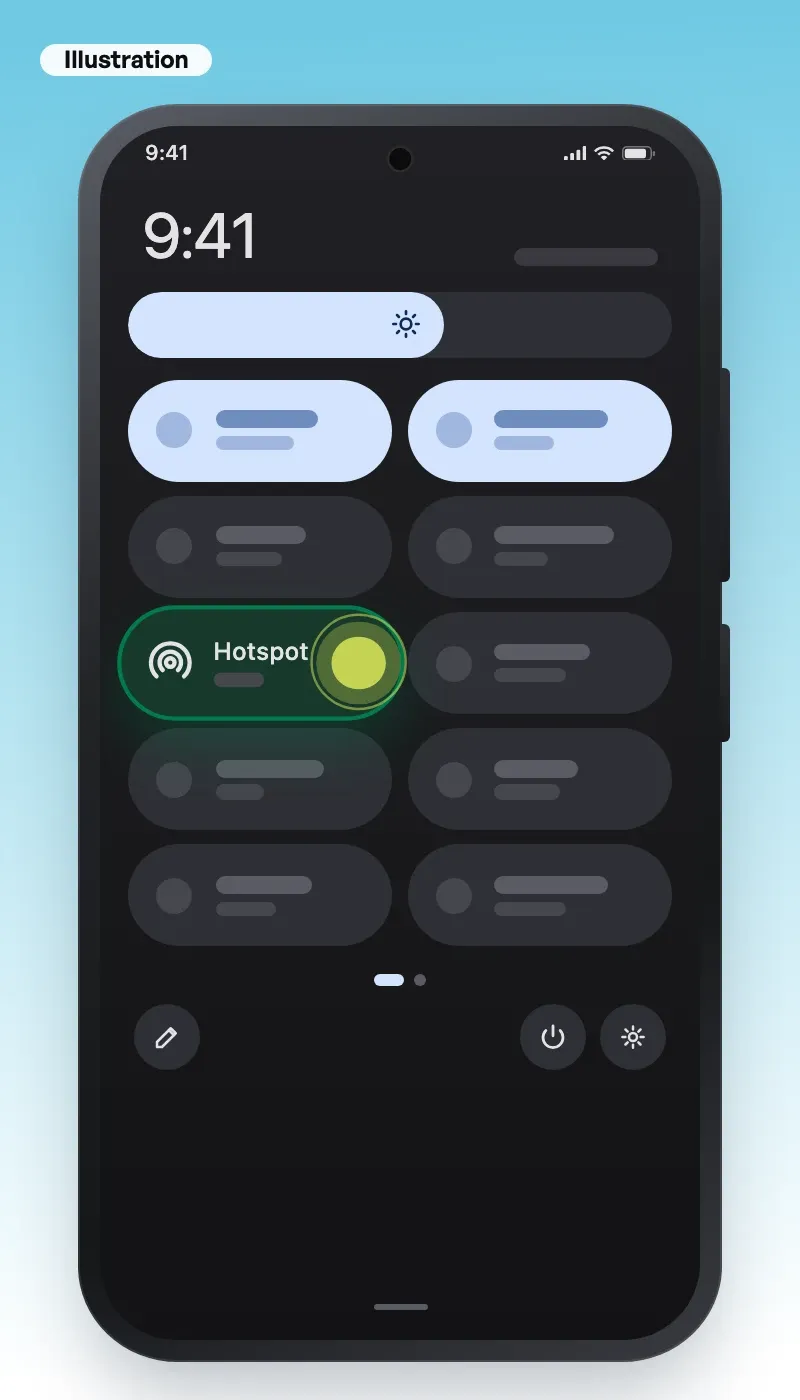
Turn on hotspot on Android from Quick Settings
Google's Android hotspot steps use the Quick Settings panel. Google says some of these steps only work on Android 14 and up, so use the Settings paths in the next section if your screen looks different.
- Swipe down from the top of the screen.
- Tap Hotspot. If it isn't there, tap Edit at the bottom left and drag Hotspot into your Quick Settings.
- To find or change the hotspot name or password, touch and hold Hotspot, then tap the one you want. You may need to tap Set up Wi-Fi hotspot first.
Hotspot settings on Samsung, Pixel, Motorola, OPPO and Xiaomi
Phone makers rename this menu, so the path depends on your brand. Open Settings, then follow the row for your phone. Each path comes from the maker's help page or Vodafone Australia's guide for that model.
| Phone | Path in Settings | What to turn on |
|---|---|---|
| Samsung Galaxy S26 (Android 16) | Connections > Mobile Hotspot and Tethering | Mobile Hotspot |
| Google Pixel 11 (Android 17) | Network and Internet > Hotspot and tethering > Wi-Fi hotspot | Use Wi-Fi hotspot |
| Motorola Moto G56 5G (Android 15) | Network & Internet > Hotspot & tethering > Wi-Fi hotspot | Use Wi-Fi hotspot |
| OPPO A6x 5G (Android 15) | Connection & sharing > Personal hotspot | Personal hotspot |
| Xiaomi | Connection & sharing > Portable hotspot | Portable hotspot |
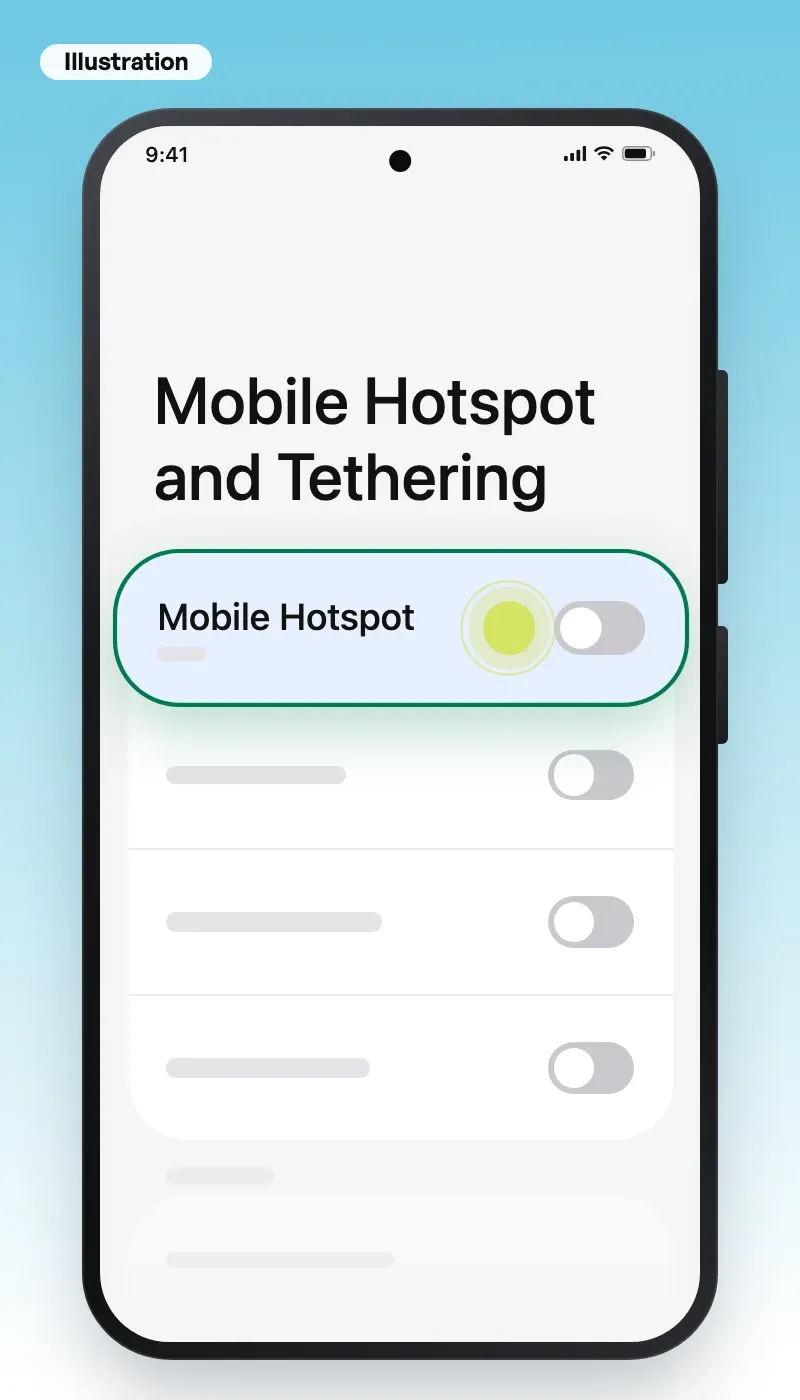
Got another brand? Search for hotspot in your Settings app. Names can differ between phones and Android versions, so go by what's on your screen.
Connect your laptop, tablet or second phone to the hotspot
Once it's on, your hotspot works like any other Wi-Fi network.
- On the other device, open its list of Wi-Fi networks.
- Pick your phone's hotspot name.
- Enter the hotspot password.
- Select Connect.
Samsung Galaxy owners can skip the typing. Samsung's hotspot QR code steps show how: tap QR Code in your Mobile Hotspot settings, then scan it from the other device. Xiaomi phones have a Share QR code option too.
Google says you can share your phone's mobile data with up to 10 other devices via a Wi-Fi hotspot. Keep a password on it, though. Google lets you pick None under Security, but Samsung's advice is to set a password so strangers can't use your hotspot. That counts in an airport lounge or a hostel.
USB and Bluetooth tethering work too
Most Android phones can also share data by USB cable or Bluetooth. Connect the cable, or pair the two devices and set up the other device's network connection with Bluetooth. Then swipe down, touch and hold Hotspot, and turn on USB tethering or Bluetooth tethering.
Mac owners should stick with Wi-Fi. Google says Mac computers can't tether with Android by USB, and Macs on macOS Monterey and up can't do it through Bluetooth.
Your hotspot shares the SIM set for mobile data
This is the setting that matters overseas. Google's dual SIM guide says only one SIM can be the default for data, so with your home SIM and a travel eSIM on one phone, only one of them feeds your hotspot. If that's still your home SIM, your laptop's data goes through your home carrier at its roaming rates.
Set the eSIM as your data line before you share:
- Google Pixel: open Settings, tap Network and Internet, then SIMs. Under Your primary SIMs, tap Mobile data and pick your travel eSIM.
- Samsung Galaxy: open Settings, tap Connections, then SIM card manager (SIM manager on some phones). Tap Mobile data and pick your travel eSIM.
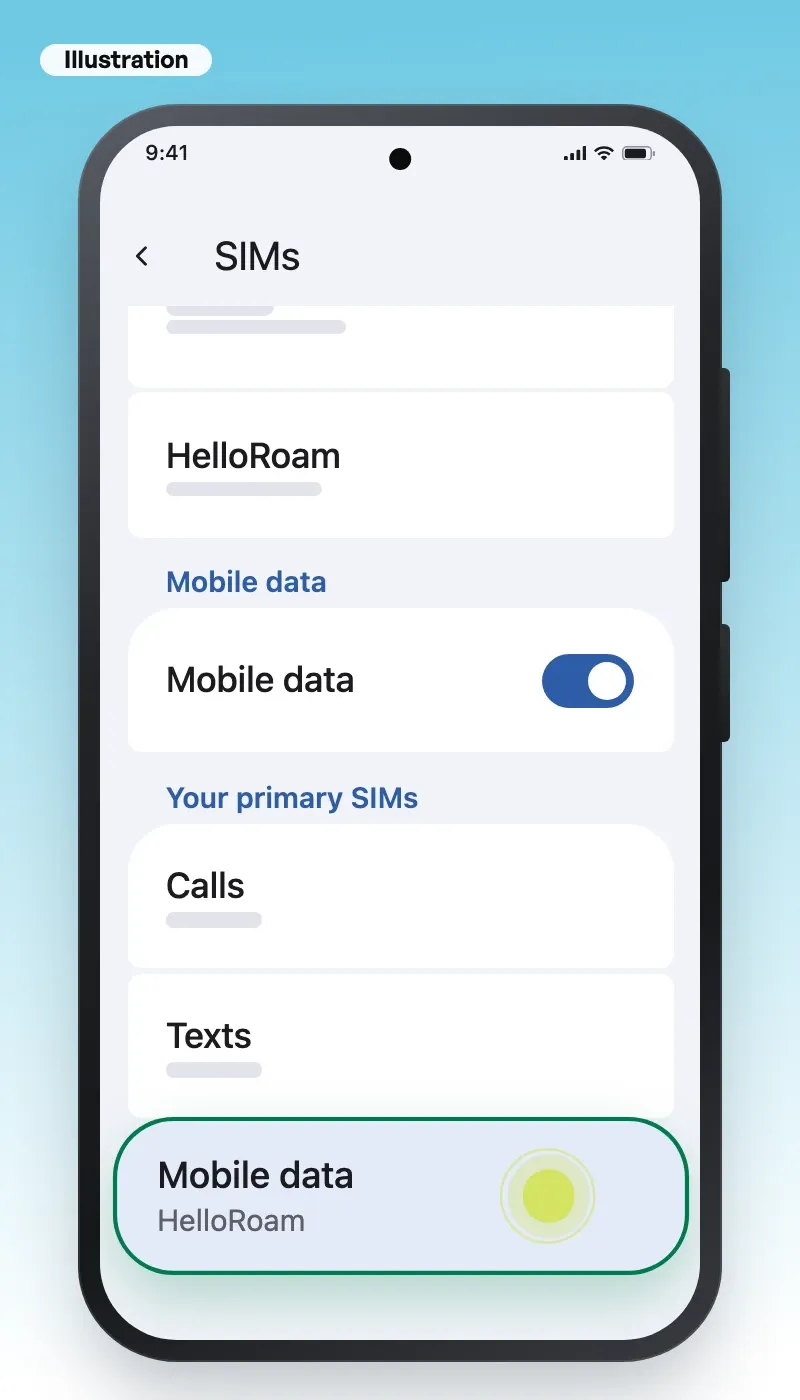
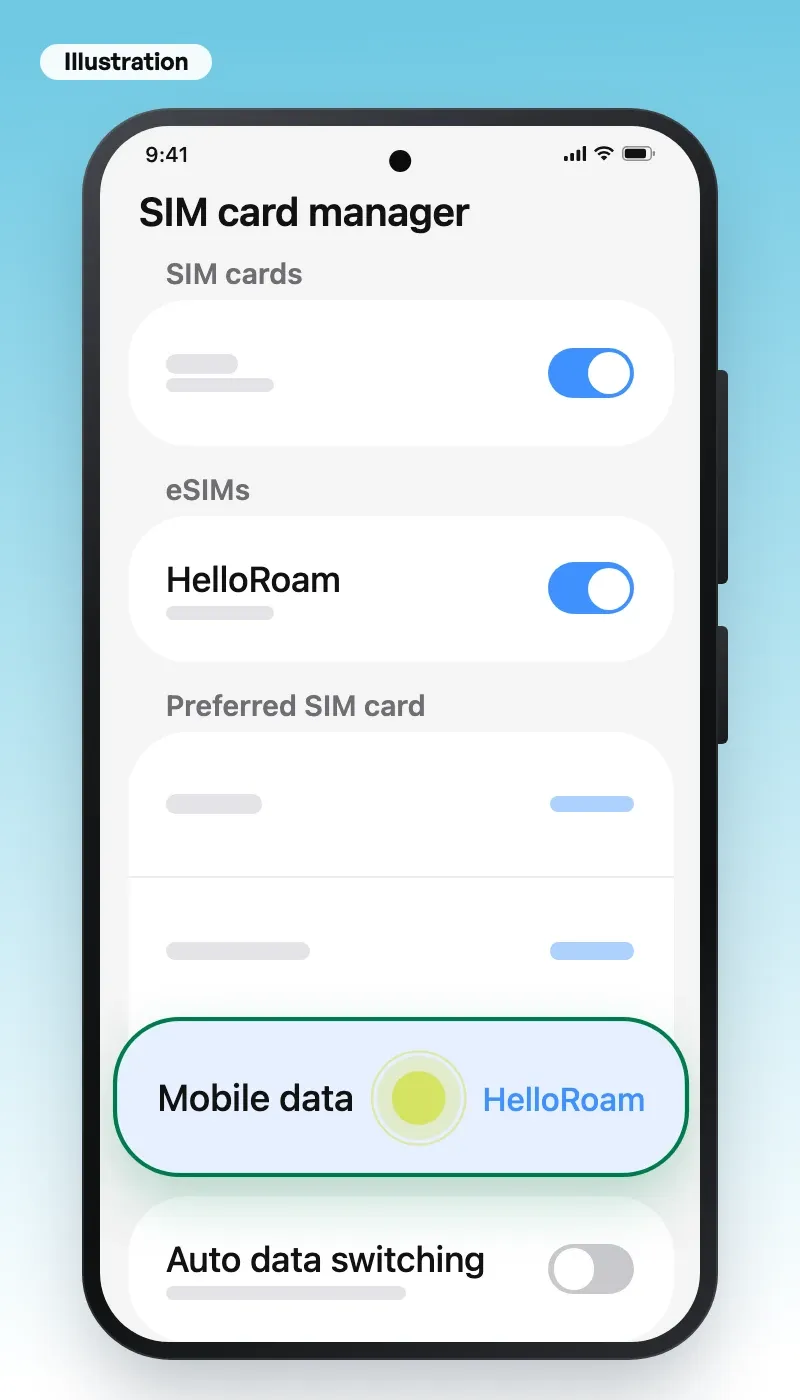
Then check for automatic switching. Samsung's SIM card manager guide says Auto data switching uses another SIM for data if the preferred one can't connect, and Pixel 8a and later phones have an Automatic data switching setting too. Overseas, that other SIM is your home line, so leave it off while you're sharing.
Telstra customers have extra reason to check. Telstra's plan summaries say International Roaming and Day Pass are automatically enabled on all mobile plans for selected overseas destinations, unless you've already opted out. Before you share from that line, read what Australian carriers charge for roaming.
Not set up yet? First check your phone supports eSIM, then follow our Android eSIM install guide.
Hotspot limits on Australian plans can catch you out
Google warns that some mobile operators limit or charge extra for tethering, so check your plan before you count on it. Telstra is one example. As of 30 October 2026, its Critical Information Summary for the Upfront Mobile Access Plan lists a 200MB hotspot limit within your data allowance. When we checked again on 18 November 2026, the Light plan's summary also listed a 200MB hotspot limit. Other carriers set their own rules, so read your own plan's summary.
Go past that limit and Telstra doesn't charge you. Your hotspot slows to 1.5Mbps or below instead. Both limits sit in what the plan does within Australia, so check them before a road trip too.
Roaming adds another layer. Samsung warns that using your phone as a hotspot while roaming may incur extra data charges. Ask your carrier how hotspot data counts on your roaming pack before you fly.
Keep your hotspot from draining your data and battery
A hotspot uses whatever the connected devices use, and it all comes off your phone's plan. On a Windows laptop, open Settings, select Network & internet, then Wi-Fi, pick your hotspot and turn on Metered connection. Microsoft says this tries to reduce data use, and some Windows updates won't install automatically. It also says Windows sets Wi-Fi networks to non-metered by default, so don't assume the setting is on.
Before you buy a plan, estimate how much data you need and count the laptop's video calls and streaming. Those swing the total far more than maps or messaging.
HelloRoam shows data used and data left in your account dashboard. The network reports usage with a delay, so figures can be up to 3 hours behind. Leave a buffer when a few devices are sharing. On a Pixel, you can also set an alert: open Settings, tap Network and Internet, then Internet, tap Settings next to your operator, then Data warning and limit.
For battery, Google's advice is to plug in your devices while tethering and turn off the connection when you've finished. Your phone can also switch the hotspot off for you:
- Google Pixel: Google says your hotspot turns off when no devices are connected. To change that, open Settings, tap Network and Internet, Hotspot and tethering, then Wi-Fi hotspot, and tap Turn off hotspot automatically.
- Samsung Galaxy: open your Mobile Hotspot settings and tap Advanced. If you don't see it, tap the Information section or Configure first. Tap Turn off when no device connected for, and pick a time.
Sharing with a group for weeks? A phone's battery carries the whole load on a hotspot, so compare portable Wi-Fi options for Australians before you fly.
Fix an Android hotspot that won't turn on or connect
Start with the row that matches what you're seeing.
| Problem | What to try |
|---|---|
| Hotspot won't turn on | Turn off Data Saver. On Samsung: Settings > Connections > Data Usage > Data Saver. On Pixel: Settings > Network and Internet > Data Saver. |
| Samsung hotspot won't turn on while you're on Wi-Fi | Turn on Wi-Fi sharing in your Mobile Hotspot settings, or disconnect from Wi-Fi first. |
| Other device can't find the hotspot | On Samsung, open your Mobile Hotspot settings and set Band to 2.4 GHz. Tap the Information section or Configure first if Band isn't showing. Then tap Advanced and turn off Hidden network. |
| Password won't work | Check the password on your phone, then type it again on the other device. |
| Connected, but no internet | Check your phone has mobile data and isn't in flight mode. On a travel eSIM, check Roaming is on for that line. Then turn the other device's Wi-Fi off and back on. |
| Connected, but no internet on a capped plan | Check your hotspot allowance. Samsung says devices can stay connected without internet once tethering data runs out. |
| Hotspot keeps switching itself off | Your phone may be saving battery. On Pixel, check Turn off hotspot automatically. On Samsung, change Turn off when no device connected for. |
Still stuck? Ask your carrier whether your plan includes hotspot. Samsung Australia's own troubleshooting list says to check that too.
Questions travellers ask
Why can't I enable my hotspot?
Data Saver is the first thing to check, because Samsung says it prevents hotspot sharing when it's on. On a Samsung connected to Wi-Fi, turn on Wi-Fi sharing or disconnect first. If it still won't work, ask your carrier whether your plan includes hotspot.
How much data does a hotspot use?
A hotspot uses as much data as the connected devices do, and it all comes off your plan. Our calculator's planning rates run from about 3.3 MB an hour for messaging to about 47 MB for web browsing and about 1.4 GB for HD video.
How do I connect a mobile hotspot to a Windows 11 PC?
Turn on the hotspot, then select the Network icon on the taskbar to open quick settings. On the Wi-Fi quick setting, select Manage Wi-Fi connections. Choose your hotspot's name, select Connect, type the password and select Next.
Sources
- Share a mobile connection by hotspot or tethering on Android (Android Help)support.google.com
- Share a mobile connection by tethering or hotspot on Pixel (Pixel Phone Help)support.google.com
- How to use dual SIMs on your Google Pixel phone (Pixel Phone Help)support.google.com
- Use less mobile data with Data Saver (Pixel Phone Help)support.google.com
- Reduce and manage mobile data usage (Pixel Phone Help)support.google.com
- Quickly Share your Hotspot with a QR Code (Samsung Australia)www.samsung.com
- How do I install a Nano-SIM card and eSIM on my Galaxy device? (Samsung Australia)www.samsung.com
- How to use dual SIM cards on your Samsung phone (Samsung UK)www.samsung.com
- Use a mobile hotspot on your Galaxy phone or tablet (Samsung US)www.samsung.com
- How to use and configure a Mobile Hotspot on your Galaxy phone (Samsung Caribbean)www.samsung.com
- Troubleshoot Mobile Hotspot and Tethering issues on your Galaxy phone (Samsung US)www.samsung.com
- Use your Samsung Galaxy S26 Android 16 as a Wi-Fi hotspot (Vodafone Australia)devices.vodafone.com.au
- Use your Google Pixel 11 Android 17 as a Wi-Fi hotspot (Vodafone Australia)devices.vodafone.com.au
- Use your Motorola Moto G56 5G Android 15 as a Wi-Fi hotspot (Vodafone Australia)devices.vodafone.com.au
- Use your OPPO A6x 5G Android 15 as a Wi-Fi hotspot (Vodafone Australia)devices.vodafone.com.au
- How to enable Portable hotspot? (Xiaomi)www.mi.com
- Telstra Upfront Mobile Access Plan: Critical Information Summary (Telstra)www.telstra.com.au
- Telstra Upfront Mobile Light Plan: Critical Information Summary (Telstra)www.telstra.com.au
- Metered connections in Windows (Microsoft Support)support.microsoft.com
- Connect to a Wi-Fi network in Windows (Microsoft Support)support.microsoft.com
- Connect personal devices automatically to Wi-Fi and instant hotspots (Android Help)support.google.com
- Manage advanced network settings on your Android phone (Android Help)support.google.com
- Manage data usage on your Galaxy phone (Samsung US)www.samsung.com
Written by
HelloRoam Team
The HelloRoam Team writes our guides on trip planning, visas and eSIMs. For every new or updated guide, we check each fact at its source. Sources include government, park and weather service pages. We note the date we read each one. A second review then checks every fact against its source before the guide goes live. If we cannot confirm a fact, we leave it out. We link those sources inside the guide, so you can check them.