
A HelloRoam eSIM is that last route: a prepaid, data-only plan you install before you fly and switch on when you land.
We read every Apple, Telstra, Optus and TDRA page behind this guide, and our own plan pages, on 30 October 2026.
FaceTime without Wi-Fi needs mobile data turned on for the app
Apple says you can use FaceTime over Wi-Fi or mobile data, and that data rates may apply. You do need one or the other. With no mobile signal and no Wi-Fi, FaceTime can't connect.
Run this check at home, so you're not hunting through menus at the airport.
- Open Settings and tap Mobile Service. Your iPhone might show Mobile, Mobile Data or Cellular instead. Apple's own Australian help pages use all four names.
- Turn on Mobile Data.
- Scroll down the list of apps and turn on FaceTime. If it's off, FaceTime only works on Wi-Fi.
- Overseas on your Aussie SIM, turn on Data Roaming. With one line, it's under Mobile Data Options. With two lines, tap the number first. If you don't see it there, tap Mobile Data Options.
- Turn off Wi-Fi and call someone, so you know it works before you leave.
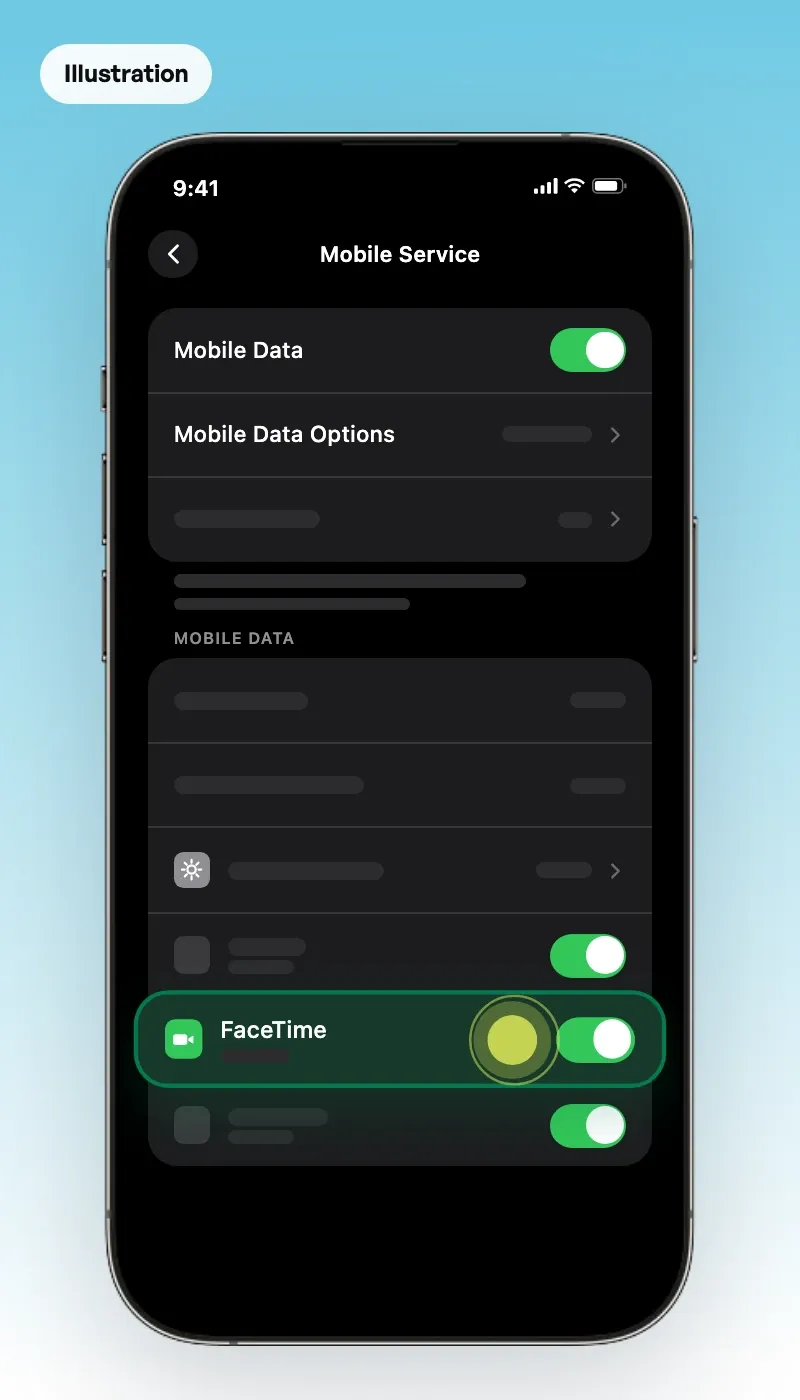
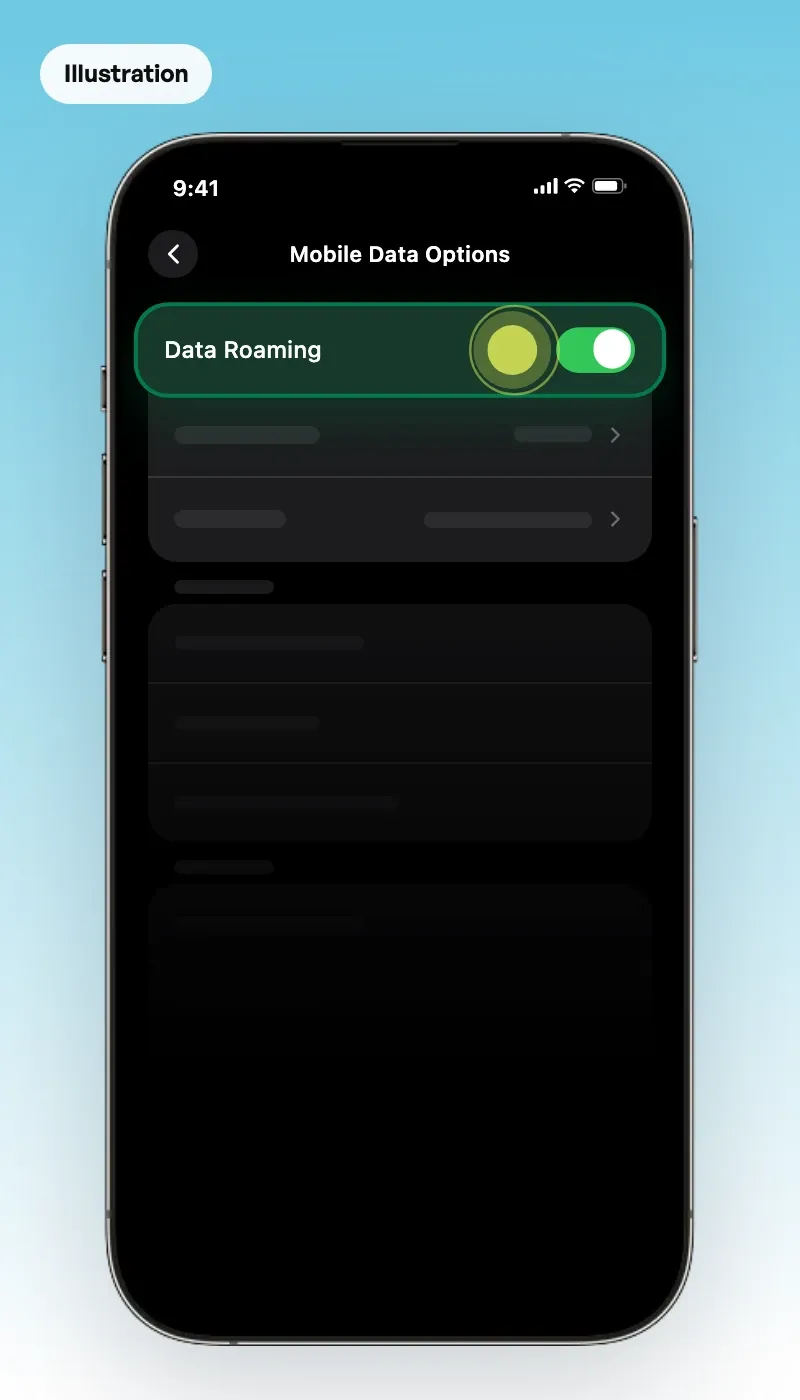
An iPad needs its own mobile data plan. A Wi-Fi-only iPad or a Mac can join your iPhone's Personal Hotspot instead, which shares your iPhone's mobile data over a temporary Wi-Fi network. Travelling with a few devices? Our guide to portable Wi-Fi for Australian travellers compares prepaid, rental and eSIM options.
Telstra and Optus treat video calls differently on roaming passes
If you stay on your Aussie plan, read this before you call home. Telstra's and Optus's roaming terms don't treat video calls the same way, and that can change your bill.
| Pass | Price | Data | If you use it all | Video calls in the terms |
|---|---|---|---|---|
| Telstra International Roaming Day Pass | $5 a day in Zone 1, $10 a day in Zone 2 | 2GB a day | Upfront plans get an SMS offer. Other plans get a 2GB top-up for $10 automatically. | Excluded and charged at pay-as-you-go rates |
| Optus Daily Roaming (Choice Plus and selected plans) | $5 for 24 hours in Zone 1 | 5GB | Another 5GB for $5, added automatically | No video call line in the terms we read |
| Optus Roaming Pass (selected postpaid plans) | $10 for 24 hours in Zone 1 | 1GB | Another pass for $10, added automatically | Outside the pass, "excluding apps which use data" |
Telstra is the one to check first. Its roaming page and Critical Information Summary both list video calls as outside the Day Pass, and the roaming page says they're charged at pay-as-you-go rates. Neither names FaceTime, but its small business help page does: it lists "Video calls, including FaceTime" as not included.
Telstra's pay-as-you-go data rate is $3 per MB, but its small business page says pay-as-you-go roaming isn't available on Upfront plans. The pages we read don't say which rate a FaceTime call uses on either kind of plan. Ask in the My Telstra app before you count on a Day Pass for FaceTime.
Optus is clearer on its $10 Roaming Pass. Its terms put video calls outside the pass, then carve out "apps which use data". Optus doesn't name FaceTime, but FaceTime runs on data, so on that pass it should count as normal data use. If you're on Daily Roaming, ask Optus.
Other carriers set their own terms. See our comparison of roaming day passes for Australians before you fly.
A travel eSIM keeps FaceTime on your Aussie number
Apple says that if you use only your travel eSIM, FaceTime and iMessage keep working on your home line. So the family can still FaceTime you on your usual number. A local SIM or eSIM gives FaceTime the same data, and many come with a local number.
A HelloRoam plan is data only, so it adds no new number, and FaceTime runs over that data wherever FaceTime is available. Your iPhone needs to be unlocked, so check if your phone supports eSIM first.
Here's the setup that keeps your Aussie line off mobile data.
- Install the eSIM at home on Wi-Fi. See how to activate an eSIM for the full steps.
- When you land, turn on the travel line in Settings, under Mobile Service or Mobile. iOS 26 and later might show a Turn On Travel eSIM prompt instead.
- Pick the travel line under Mobile Data, and turn on Data Roaming for that line.
- Leave Allow Mobile Data Switching off, so your Aussie line isn't charged for data.
- Turn off Data Roaming for your Aussie line only. Each line has its own switch on iPhone, so your travel data keeps working.
- In Settings, tap Apps, then FaceTime. Make sure your Aussie number is selected under You can be reached by FaceTime at.
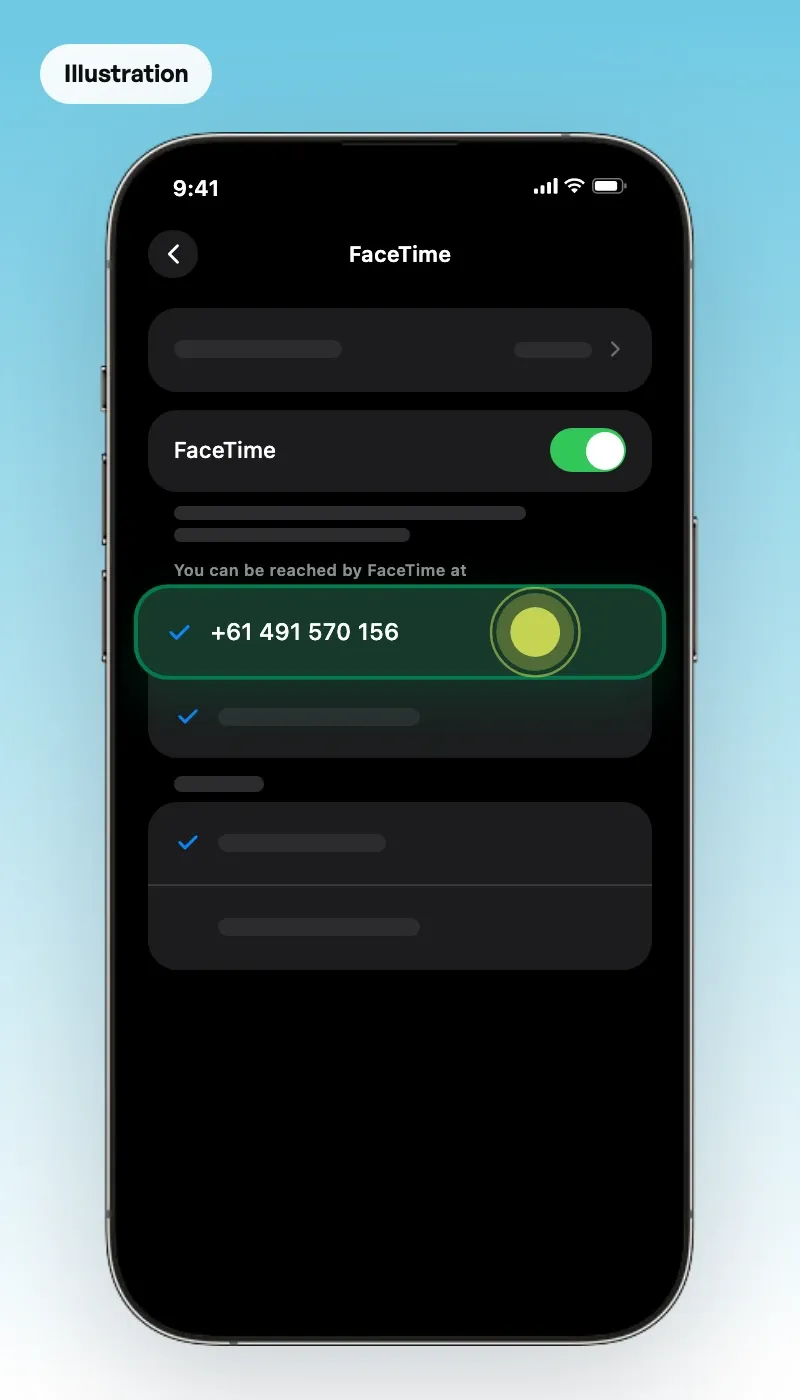
If you keep both lines on, the travel eSIM carries your data, but Apple warns you might still pay roaming fees on your home line. Telstra says the same about dual SIM phones: either number could incur roaming charges. Its Day Pass charge applies on any day your line makes or takes a call or sends an SMS, and Optus's Daily Roaming starts with your first call, text or data use. To rule that out, pick Travel eSIM Only or switch your Aussie line off in Settings. You'd keep FaceTime and iMessage on your number, but normal calls and texts, bank codes included, won't reach you. Our eSIM vs roaming comparison shows how the costs stack up.
Test FaceTime before you fly. Apple says activating your number with FaceTime takes an SMS, and your provider may charge for it. A data-only plan can't send that SMS, so sort it out at home.
We sell travel eSIMs, and our conflict-of-interest rules apply to this guide. So here's the other side. If your hotel Wi-Fi is solid, you may not need extra data at all. And if Optus confirms FaceTime counts as normal data on your plan, a single $5 day of Daily Roaming might be plenty for one long call home.
FaceTime data use: plan on about 520 MB an hour for video
We found no data figure for FaceTime on the Apple pages we read, so treat any exact number as an estimate. Here are two planning rates, per hour.
| Call type | Our data calculator | Telstra's estimate |
|---|---|---|
| One-on-one video call | 520 MB | Up to 1.5GB (standard definition) |
| Audio call in an app | 53 MB | Not listed |
| Group video call | 930 MB | Up to 8GB |
Telstra's figures are "up to" limits from its home internet help page. Ours are planning rates that assume your camera stays on. If your own test comes in higher, plan on that figure.
Here's the sum on our rate. A 30-minute video call every day for a week comes to about 1.8 GB. Buy at least 2.2 GB for those calls, which adds 20% for busy days. Then estimate your trip's total data for maps, messages and the rest.
You can also measure your own call at home.
- Open Settings, tap Mobile Service and tap Reset Statistics. Your iPhone might show Mobile or Mobile Data instead.
- Turn off Wi-Fi and make a 10-minute FaceTime call.
- Go back to the same page and find FaceTime in the app list. Multiply its figure by six for an hour.
Low Data Mode and FaceTime Audio cut what a call uses
A few settings make a big difference when you're paying for every gigabyte.
- Low Data Mode. Apple says it optimises FaceTime's video bitrate for lower bandwidth. Turn on Low Data Mode for the line you're using. iOS 26 and later can offer it when you turn on a travel eSIM.
- Data Mode on 5G. Allow More Data on 5G turns on higher-quality FaceTime and uses more mobile data. Apple says it's the default on some unlimited plans. Standard uses standard quality for FaceTime.
- FaceTime Audio. A video call can't switch to audio mid-call. End it, start a new call and tap Audio. On our rates, an audio call uses about a tenth of the data.
- Patchy hotel Wi-Fi. Your iPhone can use mobile data while you're on Wi-Fi. Apple says Connectivity Assist does this when Wi-Fi is weak, busy or not connected to the internet, and you can turn it off in Settings.
FaceTime not working on mobile data usually comes down to these causes
Work down this list before you call your carrier.
- FaceTime or Mobile Data is off. Go back through the first checklist in this guide.
- The wrong line has the data. Only one number at a time can use mobile data, so check your travel line is picked.
- Data Roaming is off. Apple says to check this on the line you're using if you see No Service or SOS only.
- The connection is slow. Apple says both of you need a fast connection. A slow one can bring choppy video, a black screen or dropped calls.
- The date and time are wrong. Open Settings, tap General, tap Date & Time and turn on Set Automatically.
- Your iPhone hasn't settled on a network. Turn on Aeroplane Mode for about 30 seconds, then turn it off.
- FaceTime needs a reset. In Settings, tap Apps, then FaceTime. Turn it off and back on, then restart your iPhone.
Some places are harder. Apple says FaceTime and FaceTime audio calling might not be available for all countries, regions or mobile carriers. On a Dubai stopover, for example, the UAE regulator TDRA says internet voice and video calls must come from a licensed or approved service. Its FAQ says other apps are very likely illegal to use and may be blocked.
TDRA's FAQ doesn't name FaceTime, and its list of approved apps wouldn't load for us, so don't count on a FaceTime call there. TDRA recommends you ask your provider whether an app is legal.
Questions travellers ask
Can you use FaceTime on Android?
Android users can join a FaceTime call, but only from a link in a web browser. In the FaceTime app on your iPhone, tap New Call, tap the Create Link button and send the link. They open it in the latest Chrome or Edge, with no login needed, then wait for you to let them in.
Do I need an Apple ID to use FaceTime?
No, not on an iPhone. Apple's guide says you can skip signing in to your Apple Account and use FaceTime with only your phone number. Signing in lets people reach you by email as well, and lets you choose what shows on Caller ID.
How do you start a FaceTime call?
Open the FaceTime app and tap New Call. Start typing a contact's name, tap it when it appears, then tap the FaceTime button for video or the Audio button for voice only. The other person needs a device that supports FaceTime, or a FaceTime link if they're on Android or Windows.
Sources
- Use FaceTime on your iPhone or iPad (Apple Support, published 19 September 2026)support.apple.com
- If you can't make or receive a FaceTime call on your iPhone or iPad (Apple Support, published 19 September 2026)support.apple.com
- Make FaceTime calls on iPhone (iPhone User Guide, Apple Support)support.apple.com
- Use mobile data on your iPhone or iPad (Apple Support, published 18 September 2026)support.apple.com
- About mobile data roaming options for your iPhone and iPad (Apple Support, published 23 October 2026)support.apple.com
- Connect to the Personal Hotspot of an iPhone or iPad (Apple Support, published 20 May 2026)support.apple.com
- Use eSIM while travelling internationally with your iPhone (Apple Support, published 23 October 2026)support.apple.com
- Use Dual SIM on your iPhone (Apple Support, published 26 October 2026)support.apple.com
- Add or remove your phone number in Messages or FaceTime (Apple Support, published 25 May 2026)support.apple.com
- If you can't turn on or sign in to iMessage or FaceTime on your iPhone (Apple Support, published 18 September 2026)support.apple.com
- Use Low Data Mode on your iPhone and iPad (Apple Support, published 3 October 2025)support.apple.com
- Use 5G with your iPhone (Apple Support, published 14 May 2026)support.apple.com
- Set up FaceTime on iPhone (iPhone User Guide, Apple Support)support.apple.com
- iPhone 17 Pro Max Tech Specs (Apple Support)support.apple.com
- Create a link to a FaceTime call on iPhone (iPhone User Guide, Apple Support)support.apple.com
- Join a FaceTime call from an Android or Windows device (Apple Support, published 11 June 2026)support.apple.com
- International roaming on a plan (Telstra)www.telstra.com.au
- International Day Pass, Critical Information Summary (Telstra)www.telstra.com.au
- What's an International Day Pass? (Telstra small business help)www.telstra.com.au
- What content uses the most data? (Telstra)www.telstra.com.au
- International Roaming (Optus)www.optus.com.au
- FAQs: VoIP (Telecommunications and Digital Government Regulatory Authority, UAE)tdra.gov.ae
Written by
HelloRoam Team
The HelloRoam Team writes our guides on trip planning, visas and eSIMs. For every new or updated guide, we check each fact at its source. Sources include government, park and weather service pages. We note the date we read each one. A second review then checks every fact against its source before the guide goes live. If we cannot confirm a fact, we leave it out. We link those sources inside the guide, so you can check them.