
A HelloRoam eSIM gives those blue bubbles their own prepaid data for the trip, and iMessage stays on your Aussie number.
Every Apple, Telstra and Optus figure below, and what we say about our own plans, comes from pages we read on 30 October 2026, so check your own plan before you fly.
iMessage uses Wi-Fi or mobile data, not your SMS allowance
If Wi-Fi isn't available, Apple says iMessage goes over mobile data and data rates may apply. Apple's iMessage overview adds that texts you send and receive this way don't count against your SMS, MMS or RCS allowance. So it comes out of your data, not your texts.
The bubble shows which one you're using. Blue means iMessage, which only reaches other Apple devices. Green means SMS, MMS or RCS, so a text to a mate on Android goes through your carrier's messaging plan. The send button changes colour the same way, so you can check it before you tap.
| Message type | Bubble | What it needs | What it draws on |
|---|---|---|---|
| iMessage | Blue | Wi-Fi or mobile data | Data only, never your SMS, MMS or RCS allowance |
| RCS | Green | Wi-Fi or mobile data | A text plan from a carrier that supports it, plus data |
| SMS | Green | Mobile network, or Wi-Fi with Wi-Fi Calling on | Your text plan |
| MMS | Green | Mobile data or Wi-Fi | Your text plan |
RCS is the one to watch in Australia. Apple's carrier list, published 18 September 2026, shows no RCS for amaysim, Optus, Telstra or Vodafone. Telstra's support page gives 16 November 2026 as the start of its rollout on compatible devices, and says roaming data charges may apply to RCS overseas. If RCS Messaging isn't in Settings under Apps and Messages, it might not be available to you yet.
How much data iMessage uses depends on what you send
A plain text barely registers. Apple's security guide says its push service relays messages of up to 4 or 16 KB, depending on the iOS version. If the text runs longer, or you add a photo, the attachment is encrypted and uploaded to iCloud instead.
We found no Apple figure for a single text, a photo or an audio message, and the numbers online vary. So this table sticks to Apple's own figures, plus one planning rate from our calculator.
| What you send | Size to plan on | Where the number comes from |
|---|---|---|
| A plain text | Up to 4 or 16 KB through Apple's relay | Apple's security guide |
| An hour of messaging apps and email | About 3.3 MB | Our data calculator, a planning rate as of October 2026 |
| A one-minute video at the default 1080p | 70 to 105 MB as a file, though your iPhone can compress attachments | Apple's video size guide |
| A photo | No Apple figure, so measure your own | The steps below |
Photos and videos you receive count too. Your iPhone fetches them from iCloud, so a mate's holiday clip can use your data before you've typed a reply. Your iPhone may also upload an attachment while you're still writing, so a video you decide not to send can use data as well.
For a real number on your own phone, test it at home before you fly:
- Open Settings and tap Mobile Service. Your iPhone might show Mobile or Mobile Data instead.
- Scroll down and tap Reset Statistics.
- Turn off Wi-Fi and send a typical photo or short video by iMessage.
- Go back to the same screen and scroll to your list of apps. Tap Show All if you need to, then find Messages. The data used shows below each app.
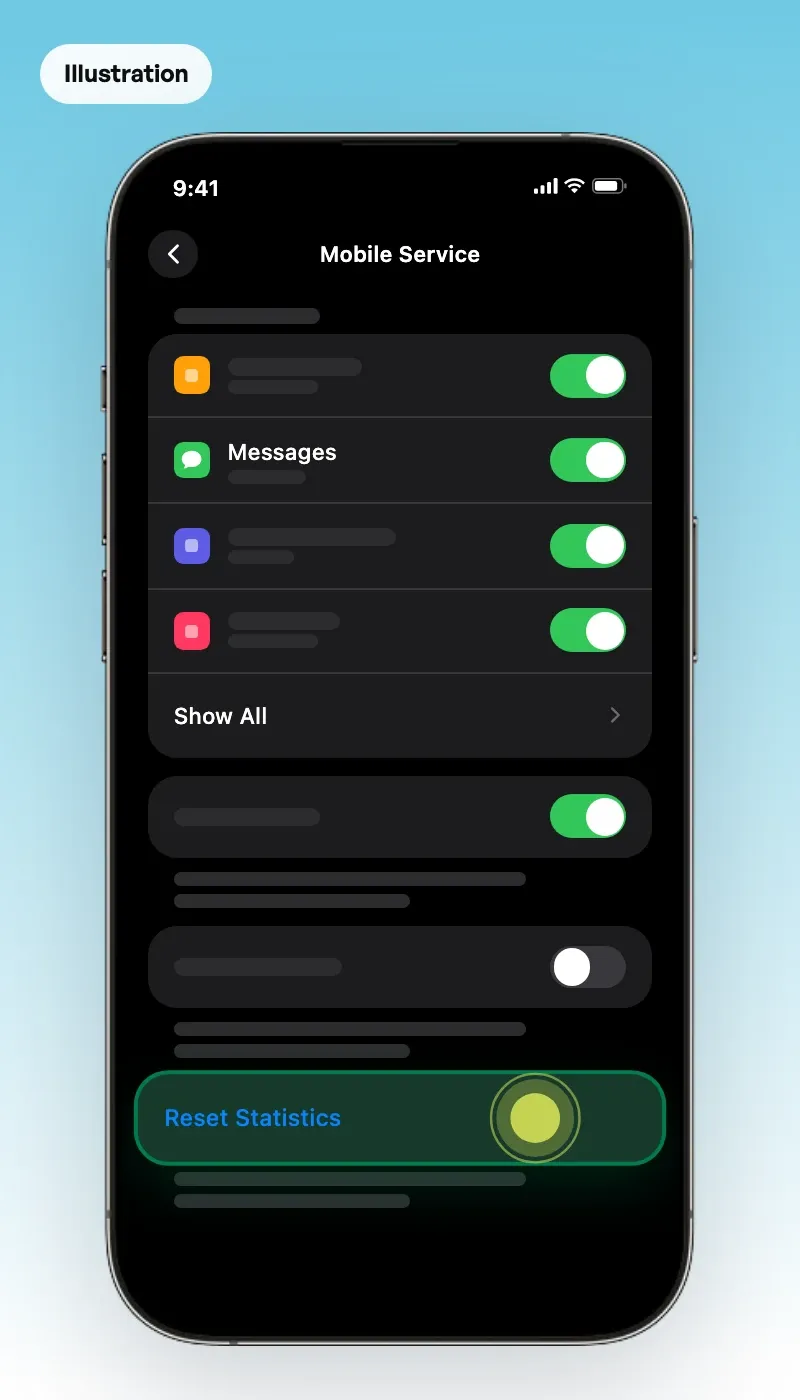
Treat the result as a guide. Apple says your service provider has the most accurate usage figure.
iMessage on roaming data can start a daily charge
Telstra and Optus don't ask what the data was for. With a pass active and Data Roaming on, one iMessage can start a paid day. Here's how the main options work.
| Option | Price and data | What starts the charge |
|---|---|---|
| Telstra Day Pass (eligible postpaid plans) | $5 a day in Zone 1 (New Zealand and 6 Oceania destinations) or $10 a day in Zone 2 (80+ destinations), with 2GB a day | Using data, background data included, sending an SMS, or making or receiving a call |
| Optus Daily Roaming (Choice Plus and some other plans) | $5 for 5GB over 24 hours, in Zone 1 | First use of talk, text or data overseas |
| Optus Roaming Pass (selected postpaid plans) | $10 for 1GB over 24 hours, in Zone 1 | Using data, sending an SMS, or making or receiving a call |
Receiving an SMS won't start Telstra's Day Pass or Optus's Roaming Pass, so a bank code landing on your Aussie number won't start the clock. Sending one will.
Skip the pass and you can pay far more. Telstra's pay-as-you-go rates are $3 per MB and 75c per SMS, though Upfront plans with the Day Pass off are limited to Wi-Fi. Optus's standard roaming rate on selected postpaid plans is $1 per MB of data in Zones 1 and 2.
Other carriers and prepaid brands set their own rules, so check yours. Our guide to Aussie roaming passes and packs covers the wider picture.
Happy to stay on Wi-Fi with no data plan at all? Turn off Data Roaming on your iPhone before you land: open Settings, tap Mobile Service, then tap Mobile Data Options. On Optus Daily Roaming, Optus says to switch to Aeroplane mode and then turn Wi-Fi back on.
iMessage can fall back to a paid SMS overseas
Messages has a setting called Send as Text Message. When it's on, your iPhone tries SMS whenever iMessage isn't available. So if the hotel Wi-Fi drops, a text you meant to send as iMessage can go out green over your Aussie line. On Telstra pay-as-you-go that's 75c, and on a Telstra Day Pass or Optus Roaming Pass, sending that SMS starts the charge.
To stop it, turn the setting off for the trip. These steps follow Apple's guides for iOS 18 and later:
- Open Settings and tap Apps.
- Tap Messages.
- Turn off Send as Text Message.
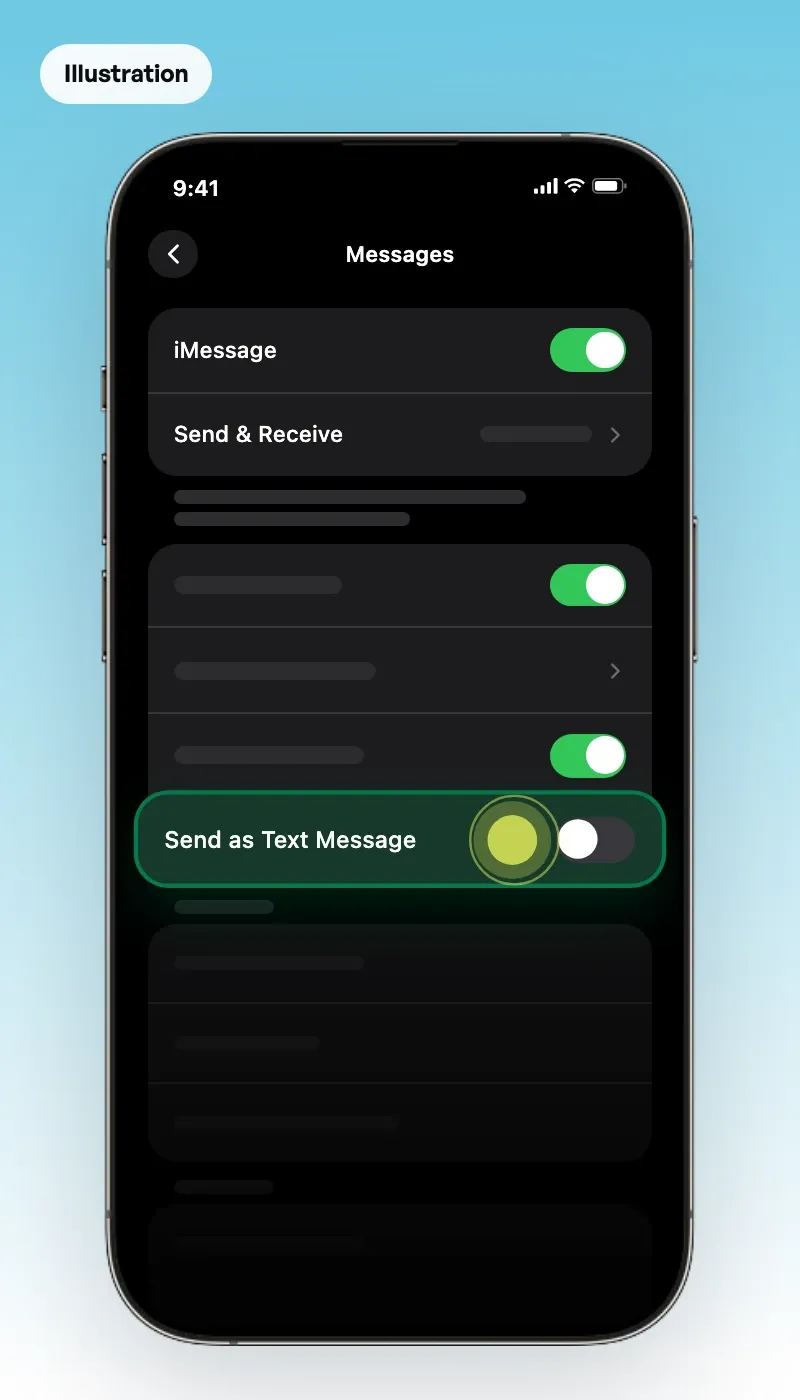
A message that can't go then shows a red exclamation mark and Not Delivered. Tap the mark to try again, or choose Send as Text Message for that one text. Apple warns that messaging rates may apply.
Turn the setting back on at home if you use group MMS, because Apple says group MMS needs it.
Photos sent as green MMS are charged separately. Telstra lists MMS overseas at 75c per recipient per message, outside the Day Pass. Optus bills MMS as per your plan, and an MMS also starts its Roaming Pass.
iMessage keeps your Aussie number on a travel eSIM
A travel eSIM gives iMessage data without touching your number. Apple's guide to using an eSIM overseas says that if you keep both lines on, your primary line keeps working. If you use only the travel eSIM, iMessage keeps working on your home line. Your mates keep messaging the number they already have.
No travel eSIM on your phone yet? Follow our guide to installing an eSIM, then set the lines up before you fly:
- Open Settings, tap Apps, tap Messages, then tap Send & Receive. Check your Aussie number has a tick.
- Back in Settings, tap Mobile Service, then Mobile Data, and choose your travel eSIM. It may not work until you land, so leave this step for the airport if you still need data on the way.
- Leave Allow Mobile Data Switching off, so your iPhone doesn't use data from both plans.
- Tap your Aussie number, then Mobile Data Options, and turn off Data Roaming on that line only, because each line on an iPhone has its own switch. Then tap your travel eSIM and turn its Data Roaming on, or it won't connect overseas.
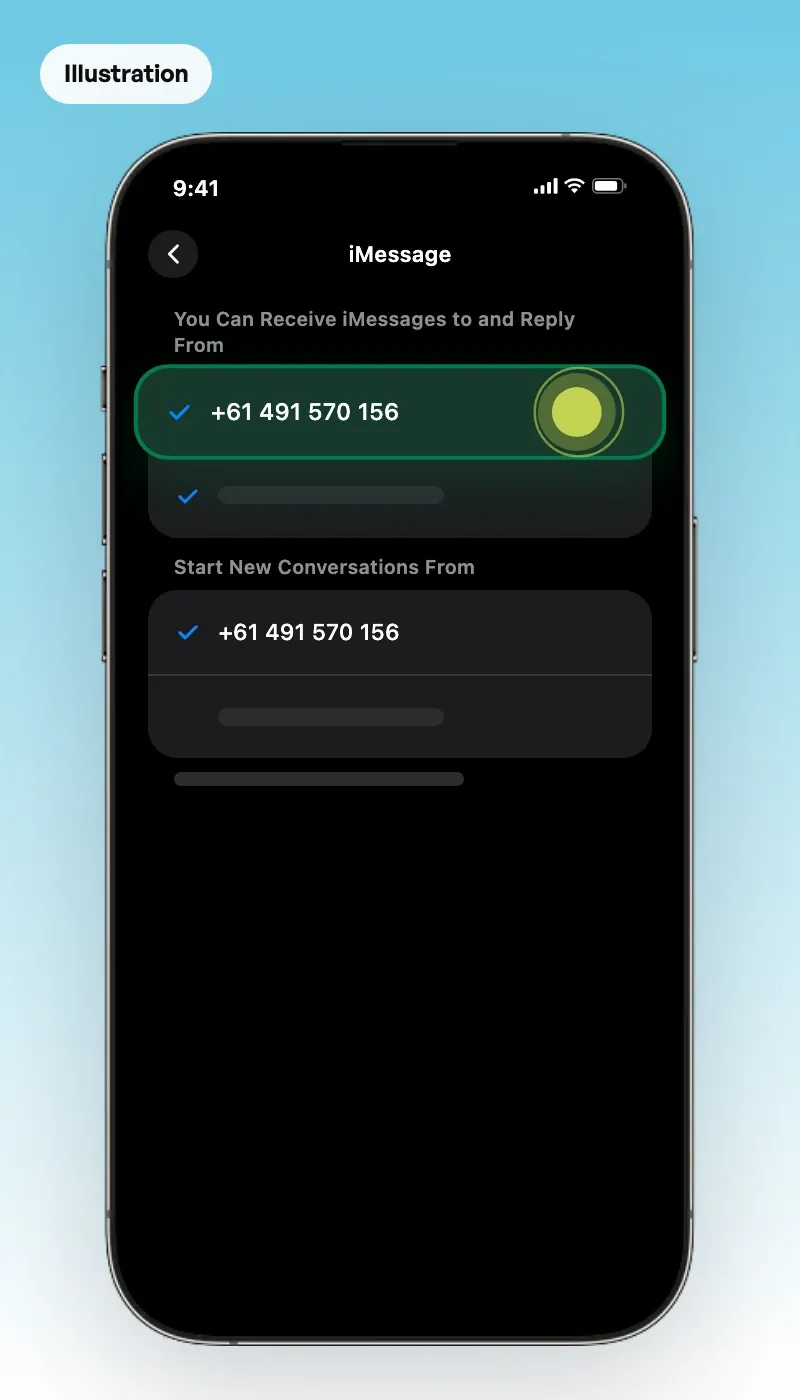
Keep your Aussie line on if you want texts and bank codes. Apple warns you might still incur roaming fees from that line, so leave Send as Text Message off as well.
HelloRoam plans are data only, so your Aussie line keeps your number and the plan adds no local one. Before you buy, see which iPhones support eSIM. Then check yours is unlocked: Apple says it must be, and Settings, General, About shows No SIM Restrictions if it is.
We sell these plans, and our conflict-of-interest rules explain how we handle that. On a short trip to a Zone 1 destination with Optus Daily Roaming, $5 for 5GB over 24 hours may be all you need. If hotel Wi-Fi covers you, you may not need extra data at all. Our page on how an eSIM compares with roaming helps with the choice.
iMessage activation overseas needs an SMS from your number
Get iMessage working before you leave. Apple says an iPhone needs SMS to activate your number with iMessage, and your service provider may charge for that SMS. If a prompt warns you about this, tap Turn On to allow it.
It isn't always instant, either. Apple says verification can take up to 24 hours, and that you should check with your provider that you can send and receive international SMS.
So once you're overseas, leave iMessage switched on unless you have a real problem. If you must activate it again, turn your Aussie line back on first. Your email address is the fallback: you can pick it under Send & Receive, though Apple warns you may get separate threads with the same contacts.
Low Data Mode and photo previews cut iMessage data overseas
Messages won't be what empties most plans. On our data usage calculator, an hour of messaging apps and email is about 3.3 MB, against about 1.4 GB for an hour of HD video. Photos and videos are where iMessage adds up, so these settings help:
- Send Low Quality Photo Previews. Find it in Settings under Apps and Messages. Apple's pages also call it Send Photo Previews or Low-Quality Image Mode. On its own, it sends a small preview first, and the full-resolution image still follows.
- Low Data Mode. Turn this on as well, and Apple says only the preview is sent. It also pauses automatic updates and background tasks off Wi-Fi. With two lines, tap the number you're using for data and turn it on there. On iOS 26 and later, your iPhone may offer it when you turn on a travel eSIM.
- Videos on Wi-Fi. A one-minute clip is the biggest number in the table above, so save it for the hotel.
- Messages on Wi-Fi only. You can turn off mobile data for Messages in the app list under Mobile Service. Apple says an app with mobile data off will only use Wi-Fi.
Set these up at home and the blue bubbles look after themselves. Then run the rest of your trip through the calculator, because maps, video and photo feeds will use far more.
Questions travellers ask
Does iMessage charge internationally over Wi-Fi?
No. On Wi-Fi, iMessage isn't using mobile data, so your Aussie carrier has no data to bill. The charge risk comes from roaming data or an SMS fallback if the Wi-Fi drops.
Can someone read your iMessages if you're on their Wi-Fi?
Not the messages themselves. Apple says iMessage conversations are end-to-end encrypted, so they can't be read while they're sent between devices. That covers hotel and cafe Wi-Fi. SMS and MMS aren't end-to-end encrypted, so check for the lock icon and the word Encrypted at the top of the chat.
How do I turn on iMessage on my iPhone?
Open Settings, tap Apps, tap Messages, then turn on iMessage. Tap Send & Receive to choose which numbers and email addresses it uses. Do this at home, because activating your number needs an SMS and your service provider may charge for it.
Sources
- iMessage overview (Apple iPhone User Guide)support.apple.com
- What is the difference between iMessage, RCS and SMS/MMS? (Apple Support, published 25 May 2026)support.apple.com
- If you can't send or receive messages on your iPhone or iPad (Apple Support, published 24 June 2026)support.apple.com
- How iMessage sends and receives messages securely (Apple Platform Security)support.apple.com
- Take and edit photos or videos in Messages on iPhone (Apple iPhone User Guide)support.apple.com
- Compress a video on iPhone (Apple Support, published 11 August 2026)support.apple.com
- Use mobile data on your iPhone or iPad (Apple Support, published 18 September 2026)support.apple.com
- View or change cellular data settings on iPhone (Apple iPhone User Guide)support.apple.com
- Use eSIM while travelling internationally with your iPhone (Apple Support, published 23 October 2026)support.apple.com
- Using Dual SIM with an eSIM (Apple Support, published 26 October 2026)support.apple.com
- About mobile data roaming options for your iPhone and iPad (Apple Support, published 23 October 2026)support.apple.com
- If you can't turn on or sign in to iMessage or FaceTime on your iPhone (Apple Support, published 18 September 2026)support.apple.com
- Use Low Data Mode on your iPhone and iPad (Apple Support, published 3 October 2025)support.apple.com
- Set up Messages on iPhone (Apple iPhone User Guide)support.apple.com
- Wireless carrier support and features for iPhone in Asia-Pacific (Apple Support, published 18 September 2026)support.apple.com
- Turn on RCS messaging on your iPhone (Apple Support, published 22 May 2026)support.apple.com
- International roaming on a plan (Telstra)www.telstra.com.au
- International Day Pass, Critical Information Summary (Telstra)www.telstra.com.au
- What are Rich Communication Services (RCS)? (Telstra)www.telstra.com.au
- International roaming (Optus)www.optus.com.au
Written by
HelloRoam Team
The HelloRoam Team writes our guides on trip planning, visas and eSIMs. For every new or updated guide, we check each fact at its source. Sources include government, park and weather service pages. We note the date we read each one. A second review then checks every fact against its source before the guide goes live. If we cannot confirm a fact, we leave it out. We link those sources inside the guide, so you can check them.