
Cheap mobile data abroad starts with a travel eSIM
Set the eSIM up at home before the trip, and you skip the airport kiosk and the language barrier at the counter. HelloRoam plans work this way: buy the plan for your trip and install it over Wi-Fi before your flight. Your maps, ride apps and messages are then ready when you land.
What AT&T, Verizon and T-Mobile charge for data abroad
AT&T's day pass terms say AT&T adds the International Day Pass to an eligible line on its own when you use the phone abroad without another international feature. The $12 daily fee starts the first time you use data, make or receive a call, or send a text, and it covers the next 24 hours. Each extra line used the same day costs $6, and AT&T charges at most 10 daily fees per line per monthly bill. Received texts don't trigger the fee.
Verizon's TravelPass also costs $12 a day per line, or $6 in Canada and Mexico, plus taxes and fees. A 24-hour session starts when you make or answer a call, send a text or use data, and background app data can start one too. Each session includes 5 GB of high-speed data, then 3G speeds.
T-Mobile works differently. As of October 2026, T-Mobile's international roaming page says Experience Beyond includes 15 GB of high-speed data in 215+ countries and destinations and Experience More includes 5 GB, then data runs at up to 256 Kbps. T-Mobile says that speed works for web browsing, email, social media and maps, while streaming music or video usually needs more. On Essentials, you need an International Pass for data in those countries. The passes cost $10 for 2 GB over 24 hours, $50 for 15 GB over 10 days or $75 for 30 GB over 30 days, and each includes unlimited calling. Check your carrier's international page for your own plan before you go.
Four ways to get data abroad, compared
Carrier day passes are the easiest choice. There's no app, no setup and no kiosk, and your existing number works as it does at home. The cost is the problem. At $12 a day, a week abroad costs $84 for one line before you've eaten a single meal. For a 48-hour trip, the convenience can be worth it. For anything longer, compare it with a travel eSIM bought ahead.
A local physical SIM puts you on a carrier in the country you're visiting. The friction is real. Your phone must be carrier-unlocked and have a SIM tray, and depending on local rules, the carrier may ask to see your passport when you buy.
The harder problem: US models of the iPhone 14 and later have no SIM tray, and Google says a US Pixel 10 or later, except the Pixel 10 Pro Fold, can only use an eSIM. A local physical SIM can't go in those phones at all. Our side-by-side of eSIM vs physical SIM covers the other differences.
Pocket Wi-Fi devices suit group trips: one hotspot, several devices, and the cost split among travel companions. The catch is managing a second piece of hardware with its own battery, rental or data fees, and a real talent for getting left on the hotel breakfast table.
Travel eSIMs suit most Americans with an unlocked phone that supports eSIM. You buy before you board, scan a QR code and install it in about five minutes. Your US number stays on the same phone for calls and texts, while the travel eSIM carries the data. We sell travel eSIMs ourselves, and our editorial policy explains how we handle that conflict of interest.
How the options compare
| Option | How you pay | Setup | Works before landing | US number active | iPhone 14+ (US) |
|---|---|---|---|---|---|
| Carrier day pass | Flat daily fee | None | Yes | Yes | Yes |
| Local physical SIM | Local carrier's prepaid price | Buy from a local carrier | No | Only if your US line is an eSIM | No |
| Pocket Wi-Fi | Rental or device, plus data | Charge and carry a second device | Partial | Yes | Yes |
| Travel eSIM | One price per plan (data and days) | About 5 minutes at home | Yes | Yes | Yes |
How a travel eSIM works next to your US number
The "e" stands for embedded: a chip built into your phone that holds a carrier profile the way a physical SIM card does, except you can't lose it down the gap in an airline seat.
A travel eSIM is a short-term data plan from a third-party provider, not your US carrier. You buy the plan online, get a QR code or an app link, and install it over Wi-Fi. The profile downloads to that built-in chip, and you're set before you board.
What makes it useful: it runs as a second line next to your US number. Your US line, the one on your Verizon or AT&T account, stays on for calls and texts. The travel eSIM carries your data on networks in the country you're visiting, so your US line doesn't need roaming data. Wi-Fi Calling on the US line has its own rules abroad, covered in the section on keeping your US number.
Many travel eSIM plans are data-only, with no phone number of their own, so your US line keeps handling normal calls and texts.
eSIM works on iPhone XS and later, Google Pixel 4 and later, and most Samsung Galaxy S21 and later models. On a trip through several countries, you can switch between eSIM lines in Settings.
What you need before installing a travel eSIM
Two things kill a smooth eSIM activation: an incompatible phone and an unreliable Wi-Fi connection. Run through this checklist before you buy any plan.
Carrier lock status. Your phone must be unlocked to use a travel eSIM. On iPhone, go to Settings → General → About and look at Carrier Lock: "No SIM restrictions" means you're clear. A phone bought from a carrier can still be locked. Verizon's unlocking policy, effective February 18, 2026, unlocks a phone once it's bought at full price or its financing is paid off. Prepaid phones stay locked until 365 days of paid service. If yours is locked, ask your carrier before you buy a plan.
eSIM compatibility. Check your exact model on our list of eSIM compatible phones before you buy. A phone can lack eSIM even when others in its range have it, depending on where it was sold. If yours has no eSIM, a local SIM or pocket Wi-Fi is the alternative.
Activation method. Most providers offer two: scan a QR code sent to your email, or install the profile through the provider's app. App-based activation is more forgiving: no camera angles and no worries about screenshot resolution.
Home Wi-Fi, not airport Wi-Fi. Buy and install before you leave, on a Wi-Fi network you trust. A busy airport network can drop mid-install, and sorting that out at the departure gate is stress you don't need.
Trip details. Have your destination country or countries, travel dates, and a rough daily data estimate ready before purchasing. Providers sell by gigabyte allotment or by unlimited daily tiers; knowing your itinerary narrows the options quickly.
iPhone and Android eSIM setup, step by step
The install is quick. The settings you pick afterward decide whether roaming charges reach your bill.
iPhone
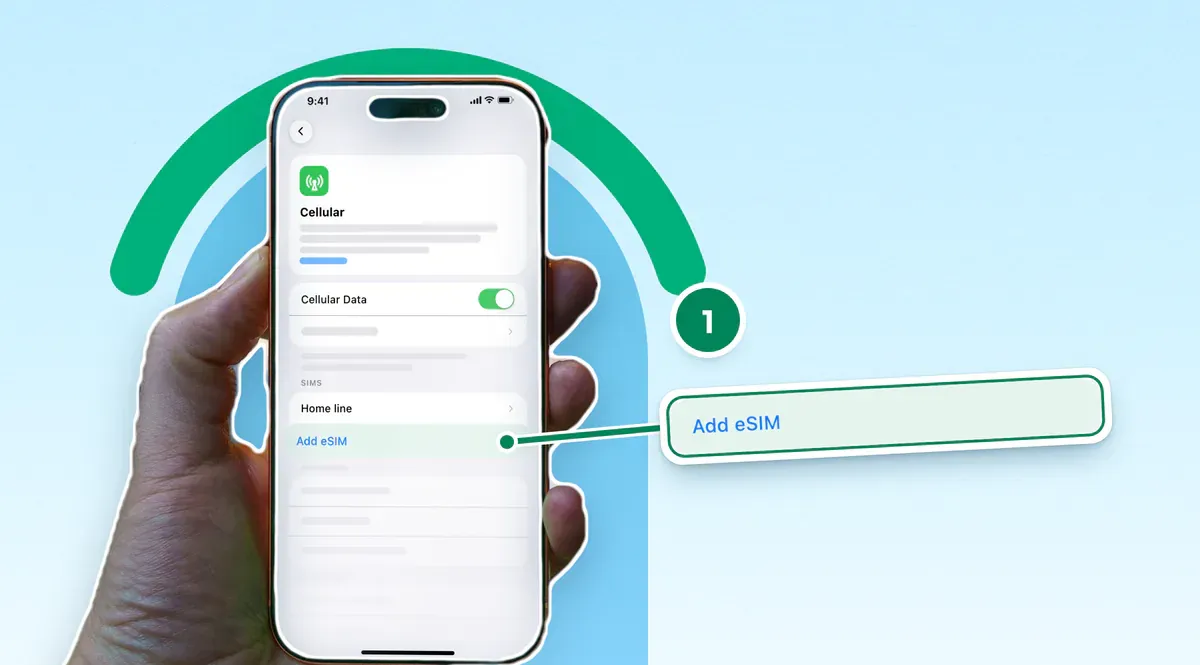
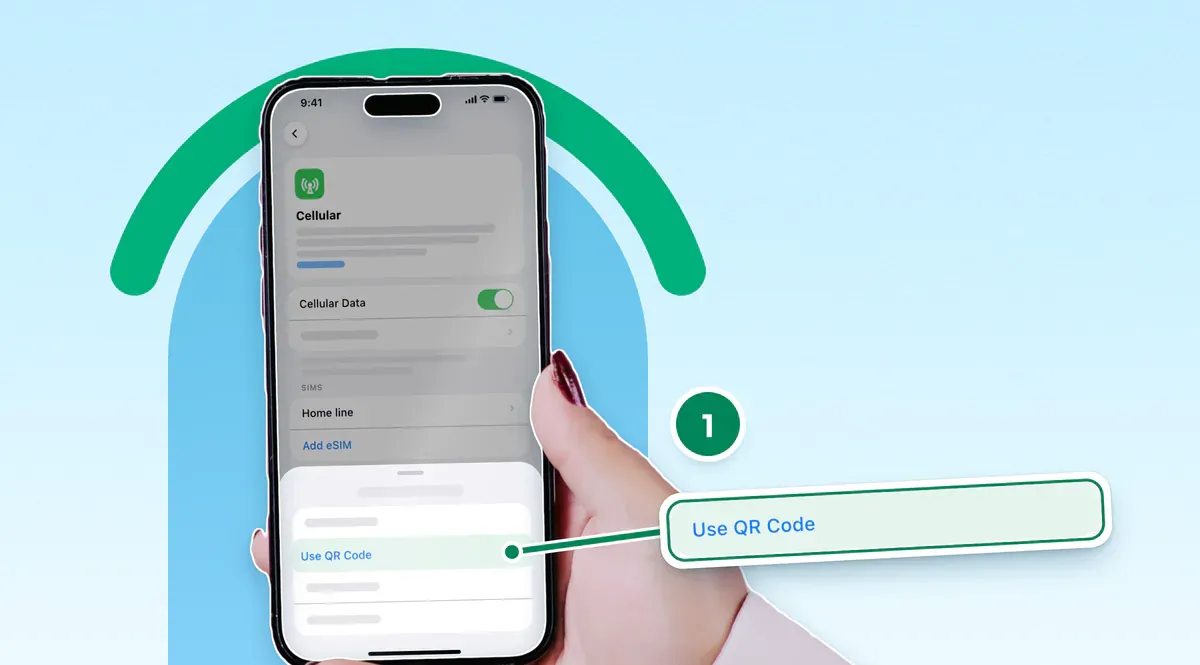
- Settings → Cellular → Add eSIM → Use QR Code.
- Scan the QR code your provider emailed, or tap "Enter Details Manually" to type in an activation code.
- Label the new line before you close the setup screen. "Europe Data" or "Japan May" works. Two unlabeled lines in the menu mid-trip are a small but irritating mix-up.
- Under Cellular Data, pick the travel eSIM. Keep your US line as the Default Voice Line.
- Turn off "Allow Cellular Data Switching." This toggle lets iOS use your US line for data when the eSIM signal drops, which is exactly how an unexpected roaming charge starts.
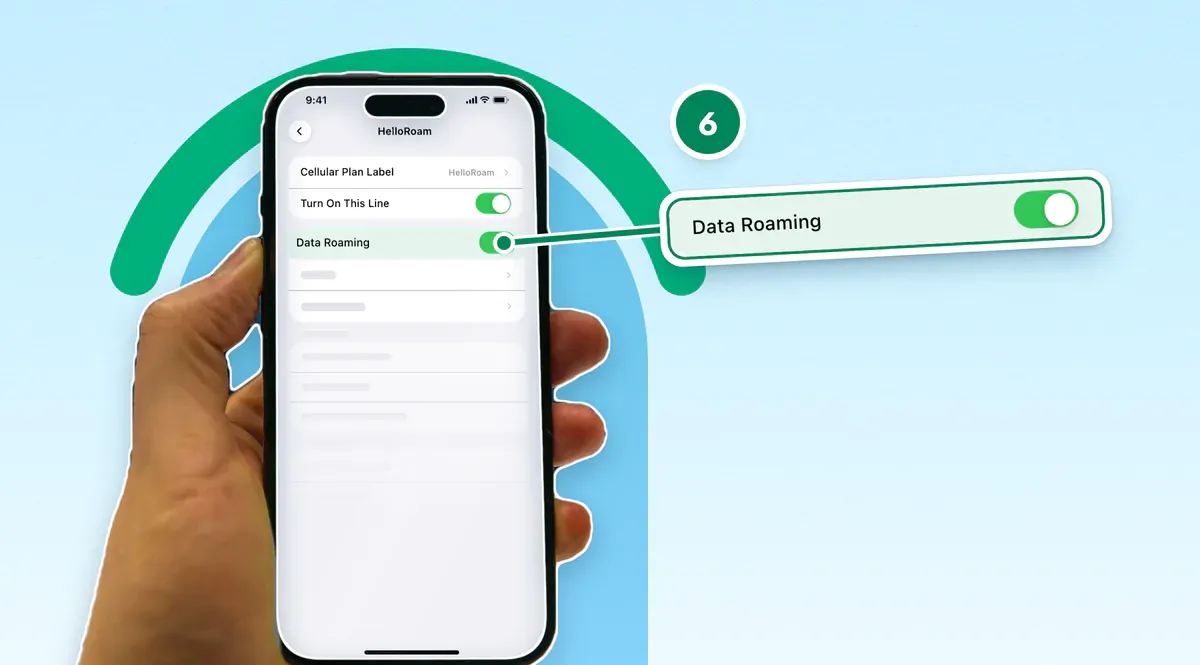
- Open your US line's settings and turn off "Data Roaming" for that line only. Then open the travel eSIM's settings and make sure its own "Data Roaming" is on. iPhone gives each line a separate toggle.
Samsung Galaxy
Settings → Connections → SIM manager → Add eSIM → Scan QR code. After installation, set the travel eSIM as the preferred data SIM and turn on Data Roaming. On many Galaxy phones, Data Roaming is one switch for both lines, so turning it off cuts the travel eSIM's data too. Your US SIM stays on for calls and texts, not data.
Google Pixel
Settings → Network & internet → SIMs → Add SIM → Set up an eSIM, then scan the QR code. Pixel gives each SIM its own Roaming switch. Set the travel eSIM as the preferred data SIM with Roaming on, then turn Roaming off on the US SIM as a separate step.
What travel eSIM data costs next to a day pass
Travel eSIM prices depend on the country, the amount of data and the number of days, so compare plans for your own trip and check the seller's page for today's price before you buy.
Set that price against $84 for a week on one line with a day pass, and remember the day pass also covers calls and texts on your US number.
Multi-region plans make sense for any itinerary crossing more than two borders. Buying separate country plans for a three-stop European trip means several installs and staggered end dates. A HelloRoam Europe plan, for example, keeps one eSIM working as you cross the borders on its country list. For a multi-stop trip, compare its price per GB with single-country plans for wherever you'll spend the most time. Our page of eSIM plans for budget travel lists country and regional plans in one place.
How much data you need depends on what you do abroad: maps and messages use far less than video calls or streaming. Before you pick a plan size, estimate how much data your trip needs. If you run short, top up before the plan's end date, because after that date you'll need a new plan.
How to use your US phone abroad without surprise roaming fees
AT&T and Verizon don't block data abroad. They bill you for it, through a day pass or pay-per-use rates. Avoiding that bill means changing settings before the flight, not hoping the plan handles it.
The no-cost approach is Airplane Mode with Wi-Fi only. With cellular radios off, your US line can't roam, though Wi-Fi Calling has its own rules on some carriers (see below). It holds up fine at hotels and cafés and falls apart the second you're between Wi-Fi networks and need navigation.
The smarter move keeps cellular on but keeps the US line off data. On iPhone, go to Settings → Cellular, tap your US line and turn off Data Roaming. The line still takes calls, but answering one abroad can start AT&T's day pass, or a Verizon TravelPass session when TravelPass is on your line. What stops is the background data that runs up charges you don't see until you get home.
Carrier day passes offer a third path: predictable rather than cheap. The weekly total is still high. You're just not surprised by it later.
The setup that ties it together: keep the US line off data and use the travel eSIM for all cellular data. Check your carrier's Wi-Fi Calling terms before you rely on it. On iPhone and Pixel, turn off the US line's own data roaming; on many Samsung Galaxy phones, one switch covers both lines, so leave it on. Your US line stays reachable, and no background data runs up a roaming bill.
Your US number stays on your phone with a travel eSIM
The number stays put. A travel eSIM adds a second line to the same phone rather than replacing the existing one. Your US number stays on its own SIM or eSIM and keeps receiving calls, texts and iMessages through the trip, as long as that line stays on.
Wi-Fi Calling lets your US line make and receive calls over Wi-Fi, but check your carrier's terms before you rely on it abroad. Verizon says Wi-Fi Calling isn't included with TravelPass, and it bills Wi-Fi calls to numbers outside the US at international long distance rates. AT&T tells travelers to turn off Wi-Fi Calling, along with data roaming, to avoid unplanned day pass fees. If your carrier's terms suit you, turn it on at home: on iPhone, go to Settings → Cellular, tap your US line, then tap Wi-Fi Calling.
For calls that stay off your carrier's bill, use WhatsApp or FaceTime over the travel eSIM's data.
iMessage and WhatsApp stay linked to your US number regardless of which line is handling data. Both apps route automatically over whichever connection is live, which in this setup is the travel eSIM. No reconfiguration needed.
In short, your US line keeps your number for calls, texts and verification codes, and the travel eSIM carries the data.
Frequently Asked Questions
What if I cross into a country not covered by my eSIM plan?
Your travel eSIM's data stops outside the plan's countries. If you followed the setup above, your phone won't move data to your US line. Calls and texts on the US line can still start a carrier day pass there. Check the plan's country list before any border crossing, since some regional plans include neighboring countries and others don't. Airplane Mode with Wi-Fi works as a stopgap if you're only passing through.
Do travel eSIMs work on cruise ships?
Not on open water. Cruise lines route connectivity through maritime satellite networks that fall outside travel eSIM coverage. Near a port city you may briefly pick up a land tower signal, but plan for no travel eSIM data while at sea.
What if my eSIM stops working mid-trip?
Don't delete it: with HelloRoam, a QR code that has already connected can't install the same eSIM again. Check that the travel eSIM is your cellular data line and that its data roaming is on, then restart your phone. If it still won't connect, email the provider's support team (help@helloroam.com for our plans, answered 24/7).
Written by
HelloRoam Team
The HelloRoam Team writes our guides on trip planning, visas and eSIMs. For every new or updated guide, we check each fact at its source. Sources include government, park and weather service pages. We note the date we read each one. A second review then checks every fact against its source before the guide goes live. If we cannot confirm a fact, we leave it out. We link those sources inside the guide, so you can check them.