

HelloRoam sells travel eSIMs for 185+ destinations. Your phone has data for maps, ride apps and messages home when you land.
A router still earns its place when several people, or several laptops, share one plan for the whole trip. If it is just you and one laptop, you can buy an eSIM online before you leave and skip the extra device.
A pocket WiFi router turns one SIM into your own Wi-Fi network
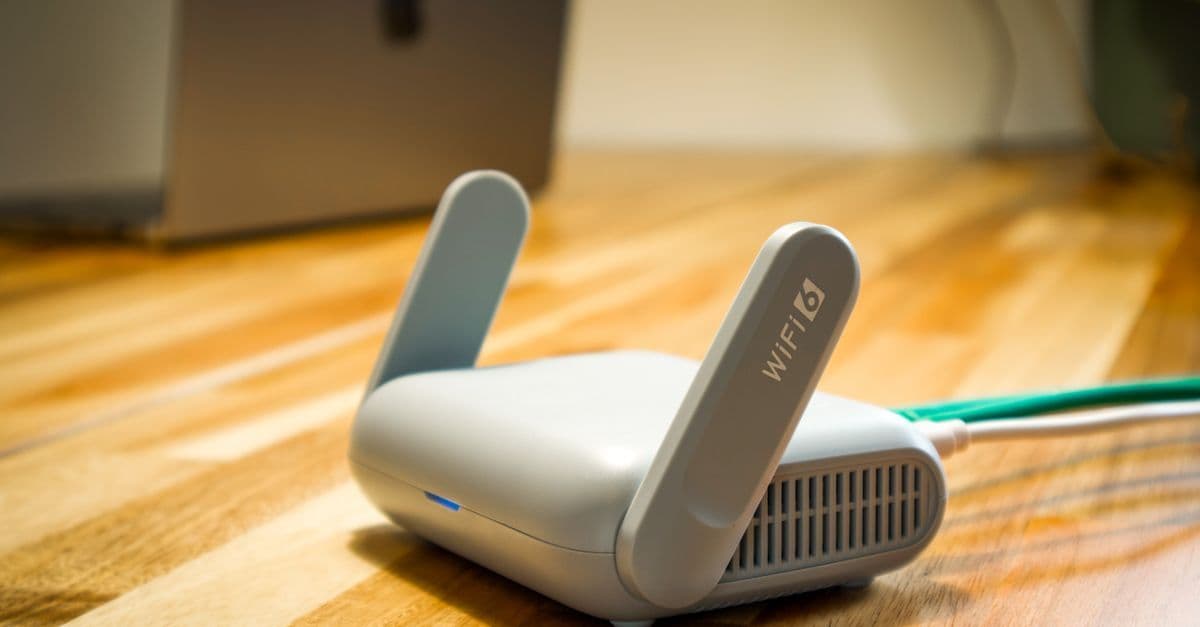
The router holds a physical SIM card, connects to the mobile network and creates a personal Wi-Fi hotspot for your devices. TP-Link, which makes these routers, sets out the steps:
- Insert a SIM card with a data plan.
- Press and hold the power button to switch the router on.
- On each phone, tablet or laptop, find the router's network name (SSID) and enter the password that came with it.
TP-Link also advises changing that default password, so only your own devices can connect.
Two routers on Huawei's and Vodacom's South African websites show the range. Huawei lists its Mobile WiFi 3s at 72 g, with up to 16 Wi-Fi devices and 6 hours of battery life, all three from Huawei's own test lab. Vodacom lists the Huawei E5783-230A for up to 32 devices and up to 6 hours of continuous use, at R949 once-off as of 27 October 2026.
The Mobile WiFi 3s pairs with the HUAWEI AI Life app on Android and HUAWEI Smart Home on iPhone, where you can see connected devices and change traffic settings.
Pocket WiFi, eSIM and phone hotspot side by side
An eSIM and a hotspot work together: the hotspot is how your phone shares its eSIM data with a laptop. So the real choice is one extra device or none.
| What matters | Pocket WiFi router | Travel eSIM on your phone | Phone hotspot |
|---|---|---|---|
| What you carry | The router, its cable and a charged battery | Nothing extra | Nothing extra |
| The SIM | A physical SIM in the router (the E5783 takes a micro-SIM) | A digital SIM built into your phone | Whichever line your phone uses for data |
| Devices online | Up to 16 (Mobile WiFi 3s, Huawei's lab figure) or 32 (E5783, Vodacom's listing) | Your phone | Up to 10 on Android, Google says |
| Battery | The router's own: 6 hours for the Mobile WiFi 3s in Huawei's lab | Your phone's | Your phone's, so Google suggests plugging in while you share |
| Setup | Insert the SIM, switch on, join its network | Scan a QR code, ideally before you fly | Settings > Personal Hotspot on iPhone, or Hotspot in Android's Quick Settings |
| Suits | Groups and families with several laptops | Solo travellers and couples | A laptop now and then |
We sell travel eSIMs, so read this comparison with that in mind. Our editorial policy explains how we handle conflicts of interest.
A South African SIM in your router roams abroad
If your router runs on a South African SIM, that SIM roams once it connects abroad, and the data you bought at home stays at home. Vodacom says it plainly: local SA data bundles only work within South Africa, and abroad your use is billed at roaming rates or taken from an active Travel Data bundle.
As of 27 October 2026, Vodacom's Travel Data bundles come in 1GB for R99 or 5GB for R349, each valid for 7 days, in more than 200 destinations. Vodacom's price checker shows the same two prices for the UK, the UAE, the US, Australia, Thailand and Mauritius. Three details matter more with a router than with a phone:
- When a bundle runs out and data is still flowing, Vodacom adds another bundle of the same size, so a router shared by several laptops needs watching.
- Prepaid and top-up lines need enough airtime for each bundle. Without it, Vodacom charges out-of-bundle rates, which its price checker lists at R0.49 per MB of data.
- Satellite networks on planes and cruise ships do not qualify. Vodacom charges them at standard roaming rates and asks you to keep data off on board, so switch the router off before you fly or sail.
Vodacom asks contract customers to activate roaming before they leave, by dialling *135*130# or in the VodaPay app. Prepaid lines usually have roaming on already, and *135*130# confirms it. On another network, check its roaming page before you fly.
South Africa's regulator sets rules here too. Under ICASA's 2016 service charter regulations, your network must send you a welcome message by SMS, or another agreed method, when you roam. It lists the data charges and the roaming networks available. The network must also publish its roaming tariffs on its website in simple language. With the SIM inside a router, a welcome SMS lands in the router, not on your phone, so read the rates on the website before you go.
Set laptops to save data on a router or hotspot
A laptop joins a router's Wi-Fi the same way it joins home Wi-Fi, so tell it the connection is limited. The same settings work on a phone hotspot.
- Windows 11: in Settings, select Network & internet > Wi-Fi, choose the network you are on and turn on Metered connection. On Windows 10, choose the network, select Properties and turn on Set as metered connection. Microsoft says Windows Update then downloads only priority updates.
- Mac: choose Apple menu > System Settings, click Wi-Fi, click Details next to the network and turn on Low data mode, which Apple says reduces your data use over that network.
You can rent a pocket router when you land in Japan

The other route is a router you rent for the trip. For a trip to Japan, the Japan National Tourism Organization says rental kiosks sit at all major airports. You can also book a router online and have it delivered to your hotel.
A rental is one more device to keep charged and to hand back before your flight home.
An eSIM covers most trips without a second device
Apple describes an eSIM as a digital SIM built into the phone, with no physical card needed. A pocket router needs a physical SIM card instead, and our eSIM vs Physical SIM guide shows how the two compare for South African travellers.
When the laptop needs a connection, share the phone's data. On iPhone, open Settings, then Personal Hotspot; Apple notes this needs a network provider that supports Personal Hotspot. On Android, tap Hotspot in Quick Settings. Google warns that some carriers limit or charge extra for tethering, so check your plan. HelloRoam plans allow hotspot and tethering where your phone supports it, and shared data comes out of the plan's allowance.

Set the eSIM up at home, before you leave for OR Tambo, Cape Town International or King Shaka. HelloRoam emails you a QR code, and one scan installs it on your phone.
When a pocket router is still the better pick
- Several people share one data plan, and nobody wants to run a phone hotspot all day.
- You work on a laptop for hours and want your phone's battery for maps and calls.
- Your phone does not support eSIM.
If you buy one to take abroad, first check that it works on the mobile networks in the country you are visiting, as TP-Link advises. Then compare the maker's battery life, the number of devices it connects and the SIM size it takes. Treat device counts and speeds as ceilings: Huawei says its figures come from lab tests and vary with the network.
Questions travellers ask
Is pocket WiFi free?
No. You pay for the router, or a rental fee abroad, and for the data on the SIM inside it. Vodacom lists the Huawei E5783-230A at R949 once-off, and its Travel Data bundles cost R99 for 1GB or R349 for 5GB, each valid for 7 days. Free airport Wi-Fi is a shared public network, not a pocket router.
Sources
- Data Travel Bundleswww.vodacom.co.za
- International Roaming & Calls (FAQ)www.vodacom.co.za
- HUAWEI E5783-230A CAT7 Mi-Fi Routerwww.vodacom.co.za
- End-User and Subscriber Service Charter Regulations, 2016 (Government Gazette No. 39898)www.icasa.org.za
- HUAWEI Mobile WiFi 3sconsumer.huawei.com
- What Is a Pocket WiFi and How Do You Use It?www.tp-link.com
- Wi-Fi in Japanwww.japan.travel
- Share a mobile connection by hotspot or tethering on Androidsupport.google.com
- Connect to the Personal Hotspot of an iPhone or iPadsupport.apple.com
- Set up eSIM on iPhonesupport.apple.com
- Metered connections in Windowssupport.microsoft.com
- Wi-Fi settings on Macsupport.apple.com
Written by
HelloRoam Team
The HelloRoam Team writes our guides on trip planning, visas and eSIMs. For every new or updated guide, we check each fact at its source. Sources include government, park and weather service pages. We note the date we read each one. A second review then checks every fact against its source before the guide goes live. If we cannot confirm a fact, we leave it out. We link those sources inside the guide, so you can check them.