

Quick Answer: siri not working

Siri stops responding for five main reasons: the feature is toggled off in Settings, a Focus mode is blocking it, Apple's servers are degraded, a recent iOS update reset a preference, or your internet connection dropped whistleout.com.
Check Apple's System Status page before changing anything on your phone. If the Siri indicator shows yellow or red there, you're waiting on Apple, not debugging a local problem.
If the status page is clear, open Settings > Siri and Search and confirm "Ask Siri" is on. That single toggle causes more sudden failures than most people expect, particularly after iOS updates that silently reset user preferences.
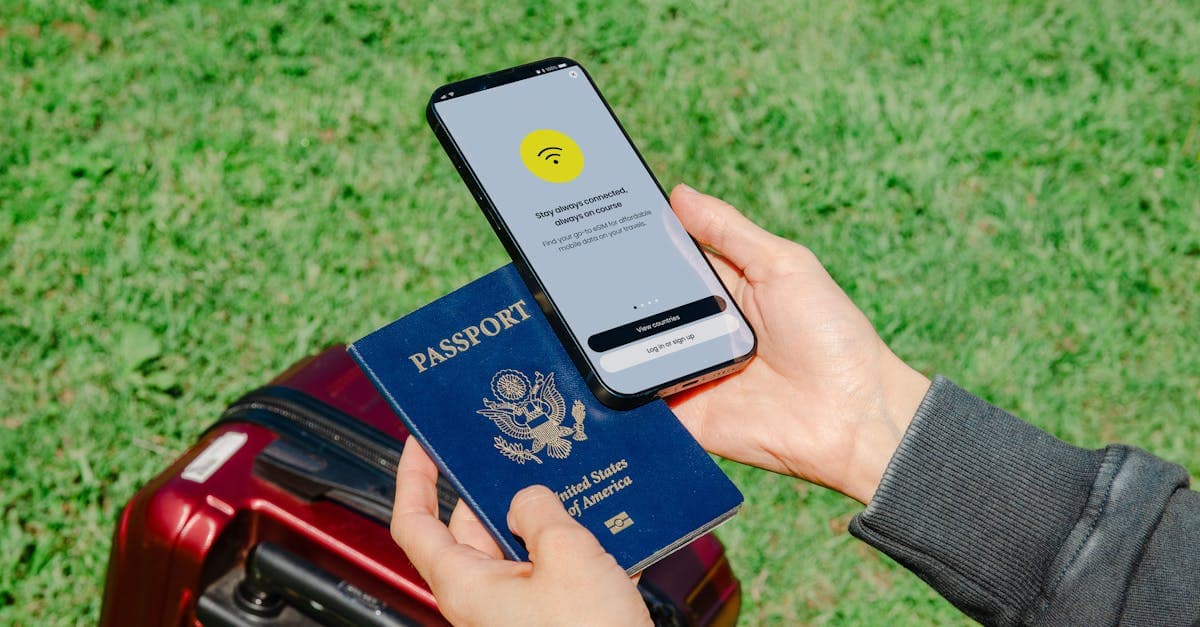
One cause most troubleshooting guides skip entirely: adding a travel eSIM or swapping SIM cards on a dual-SIM iPhone can cut off Siri's network access with no error message to signal what went wrong.
Quick Answer: Top Fixes for Siri Not Working
Most Siri failures resolve in under five minutes. The table below maps the five most common causes to their symptoms and fix time, fastest first.
The server check matters.
Skipping it and digging through local settings wastes time if Apple is already fixing things on their end.
The eSIM trigger is the one almost every troubleshooting guide misses. Activating a travel eSIM on a dual-SIM iPhone, the setup many travelers use to keep their AT&T or T-Mobile number active while routing international data through a cheaper plan, can quietly break Siri's data path. If Siri failed right after a carrier switch, check Settings > Cellular before touching anything in Siri settings. Travel eSIM plans built to run cleanly alongside a primary US line are available at Browse All eSIM Plans.
Each fix covered in full below.
How to Fix Siri Not Working Right Now
Check your internet connection before adjusting any Siri setting. Siri runs in the cloud. A dropped cellular or Wi-Fi connection makes every toggle feel like a fix when it isn't.
Eight steps, ranked from fastest to most involved:
- Confirm Apple's servers are up. Visit apple.com/support/systemstatus. A yellow or red Siri indicator means stop here and wait.
- Toggle Ask Siri off, then on. Settings > Siri and Search. Clears most temporary glitches in under 30 seconds.
- Turn off Focus modes. Control Center > Focus. Do Not Disturb silences Siri without warning.
- Force restart your iPhone. Volume Up, Volume Down, then hold the Side button until the Apple logo appears. Fixes most temporary software bugs.
- Check Cellular data settings if you recently changed SIM or eSIM. Settings > Cellular > confirm the right line handles data.
- Sign out of Siri. Settings > Siri and Search > scroll down > Sign Out. Sign back in.
- Reset Network Settings. Settings > General > Transfer or Reset iPhone > Reset > Reset Network Settings.
- Update iOS. Settings > General > Software Update.
Each step below isolates one specific failure mode.
Is Siri enabled in your Settings?
Open Settings > Siri and Search and check three things in order.
First, confirm "Ask Siri" is toggled on. This is the master switch. If it's off, nothing else you try will make a difference support.apple.com.
Second, tap "Listen for" and set it to "Hey Siri" or "Hey Siri and Side Button." If this reads "Off," hands-free activation won't respond regardless of other settings support.apple.com.
Third, enable "Allow Siri When Locked" if you need Siri accessible from a locked screen. This toggle sits separately from the main switch, and some iOS updates disable it automatically support.apple.com.
Retrain Hey Siri and fix silent audio output
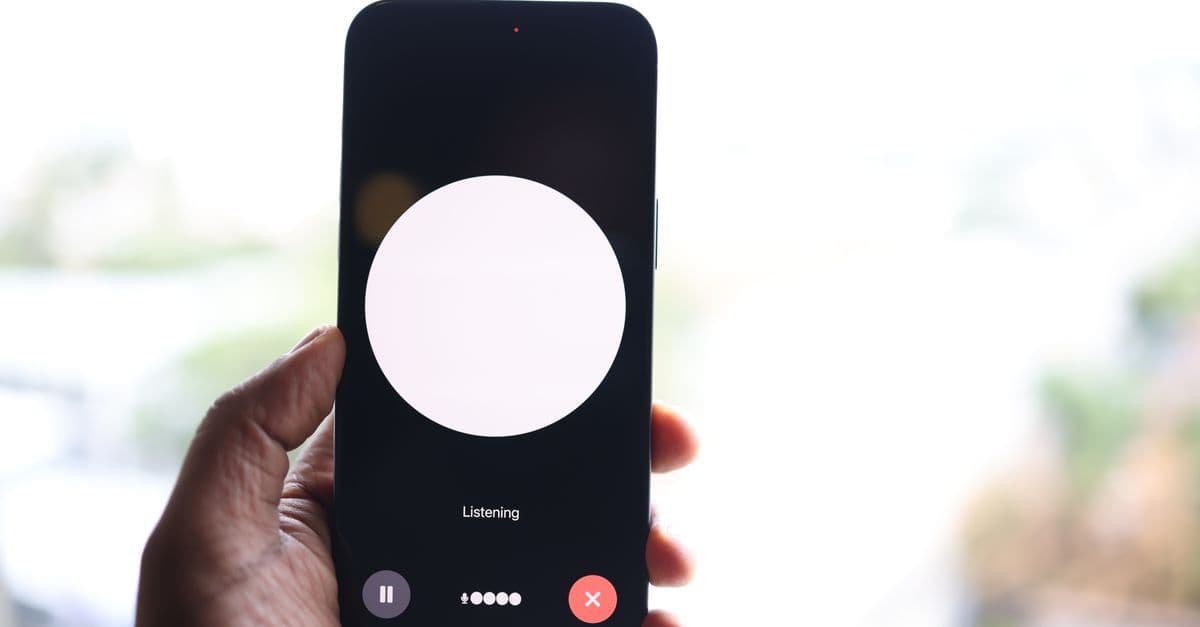
After an iPhone update or restore, Siri's voice model can drift out of sync with your voice, causing missed wake words or completely silent responses. Go to Settings > Siri and Search, toggle "Listen for 'Hey Siri'" off, then back on. iOS immediately runs a fresh voice recording setup yournavi.com.
One thing most users miss: Siri's audio runs through the ringer channel, not media volume whistleout.com. Side switch muted? Ringer at zero? Siri's responding, but silently. The ringer volume slider is the one that counts.
Turn off Focus mode and disconnect Bluetooth
Focus mode and Do Not Disturb are the most overlooked Siri audio killers. Not a broken microphone. Not a hardware fault. An active Focus profile silences Siri's spoken responses entirely, so the assistant hears you, processes the request, and says nothing back whistleout.com.
Check Control Center first: a colored badge on the Focus icon confirms one is active. Tap it off.
AirPods grab Siri's audio the moment they connect. Paired but sitting in their case? Siri speaks to the case. Disconnecting them routes audio back to your iPhone's speaker in seconds yournavi.com.
Restart your iPhone and install the latest iOS 26 update
Press volume up, press volume down, then hold the side button until the Apple logo appears. That's the hard restart sequence. It clears stuck processes a normal shutdown misses and forces iOS to reload Siri's background services from scratch.
Then check Settings > General > Software Update. Apple ships targeted Siri fixes in minor iOS 26 point releases, the kind that don't make headlines but quietly resolve broken wake-word detection and network timeouts. An update sitting in the queue might be the entire reason Siri went silent. Install it before trying anything else.
Why Is Siri Suddenly Not Working?
Siri stops responding suddenly for three specific reasons: an iOS update silently reset its permissions, a framework bug froze wake-word detection, or Apple's servers went down. All three look identical from your side of the screen, which is what makes them frustrating to diagnose.
Server outages are the easiest to rule out. Apple's system status page tracks Siri as its own service row. A yellow or red indicator there means nothing you do locally will fix it. Put your phone down. The problem resolves when Apple resolves it.
iOS updates are stealthier. Apple resets Siri permissions during major version installs without surfacing a notification discussions.apple.com. You update to a new iOS 26 build, the phone reboots, and Siri access gets quietly revoked. Checking Settings > Siri and Search right after any update is the fastest way to catch this before assuming hardware is at fault.
Framework bugs fall into the third bucket. Something in Siri's background process hangs, wake-word detection stops responding, and no error message appears anywhere. A hard restart usually clears these within seconds yournavi.com.
Focus mode is the most convincing impersonator. Siri hears your voice, processes the request, and delivers zero audio output. There's no error. Most people assume the microphone failed.
The failure mode almost no troubleshooting guide mentions: Siri going silent after switching cellular data sources. Siri routes all processing through your active data connection. Switch to a travel eSIM (a digital SIM profile installed without swapping physical hardware) or change your preferred data line under Settings > Cellular, and Siri's link to Apple's servers can drop while the phone re-establishes its data path. The assistant goes quiet, and nothing in the Siri settings explains why.
Compare eSIM plans for your destination — See 2026 pricing →
iOS updates and eSIM data switches create a specific, isolatable failure pattern worth examining on its own.
Siri Not Working After an iOS Update or eSIM Switch
Two things kill Siri after an iOS 26 update: the install silently resets your Default Data line on iPhone 15 and 16, and activating an eSIM profile triggers the same reset. Most users assume the update damaged a microphone permission or voice model. The actual failure point is buried deeper than that.
Siri routes every request through the Default Data line (the cellular connection your iPhone uses for outbound internet traffic). When iOS 26 installs in the background, that setting can flip without any notification. Activating a new eSIM profile does the same thing. Your Siri toggle stays on, Hey Siri shows as active, but the data pipeline is now pointing at the wrong line.
Check this before anything else. Open Settings > Cellular, tap "Default Data," and confirm the correct line is selected. On a dual-SIM iPhone running a physical SIM plus an eSIM, the default often shifts to the eSIM the moment you activate it, regardless of which line you want handling data.
Travelers running a travel eSIM alongside their home SIM hit this most often. The iOS 26 bug has a targeted workaround.
iOS 26 Siri silence bug: cause and current fix
The iOS 26 Siri silence bug triggers when a background app refresh cycle interrupts Siri's initialization on iPhone 15 and 16. It's a finicky failure: Hey Siri disappears with no error message. The workaround:
- Open Settings > Siri and Search. Toggle "Ask Siri" off.
- Hard restart: press volume up, press volume down, then hold the side button until the Apple logo appears.
- Return to Settings > Siri and Search. Toggle "Ask Siri" on and complete the voice setup prompt if it appears.
Developer forums report a targeted patch is expected in iOS 26.1. Until it ships, this reset clears the initialization failure in most cases.
Siri after activating or switching an eSIM profile
Switching an eSIM profile (adding a new carrier configuration to your iPhone's embedded SIM chip) silently resets both the Default Data and Default Voice lines. There's no warning. No pop-up. iOS treats it as part of the provisioning process.
When the Default Data line points at the wrong SIM after the switch, Siri's server call fails silently. The assistant shows as active but returns nothing. It doesn't fall back to the other line.
The fix is straightforward: Settings > Cellular > Default Data, select the line with active internet access. Do the same for Default Voice if you make calls. Run this check after every eSIM swap.
Siri Not Working While Traveling: Roaming, eSIM, and Connectivity
Four triggers break Siri during international travel: airplane mode with WiFi calling, foreign network routing delays, language and region settings, and mid-trip eSIM profile switches. Clear Global Entry at JFK, flip off airplane mode, ask Siri for ground transportation, and if you get a spinning response, one of those four is active.
Airplane mode with WiFi calling
iOS treats WiFi calling and Siri data requests as separate traffic paths. In airplane mode with cellular off, Siri's data route goes dead even if WiFi calling is active. Confirm WiFi is connected, then toggle Siri off and back on with WiFi running.
Foreign cellular networks and roaming
Roaming connections add latency between your iPhone and Apple's Siri servers, producing sluggish responses or silent timeouts. A local eSIM data plan routes through local infrastructure instead of your US carrier's international roaming chain, which cuts most of that delay. AT&T's and Verizon's international day passes still route voice requests through US servers, which compounds the problem.
Language and region settings
Siri's language setting is independent of your iOS display language. Open Settings > Siri and Search > Language if you're traveling somewhere a different regional variant would improve recognition accuracy. A noisy street in Mexico City or a busy terminal in Seoul will expose any mismatch between your accent and the selected Siri language. You can add a second language without removing your primary one.
Mid-trip eSIM swaps
Each profile switch resets Default Data, as described in the section above. Swap to a new regional plan mid-trip and Siri stops responding until you re-verify that one setting at Settings > Cellular > Default Data.
Running a consistent eSIM plan throughout your trip eliminates the mid-trip resets that break Siri's routing. HelloRoam offers eSIM plans for international travel with 24/7 multilingual support, which matters when a settings issue surfaces at 2am in a different time zone. Activate before boarding, confirm Default Data once on arrival, and Siri handles the rest without extra configuration.
Browse All eSIM Plans before your next departure to confirm your destination is covered.
Remaining questions about Siri are answered in the FAQ below.
Siri FAQ: Activating, Resetting, and Checking Live Status
Apple's live Siri status indicator is at apple.com/support/systemstatus. Resetting Siri erases only the acoustic voice model, not any iPhone data. Re-enabling Siri takes one toggle: Settings > Siri and Search > Ask Siri. Those three facts cover the most common Siri management questions.
A reset is not a wipe.
The voice model reset trips people up most. Deleting the Hey Siri acoustic profile removes what Apple learned about your voice cadence and pronunciation support.apple.com. Nothing else changes on the device.
If you want to clear Apple's record of what you've asked Siri, that's a separate action from the voice model reset. Go to Settings > Siri and Search > Siri and Dictation History, then tap Delete Siri and Dictation History. This removes the query log Apple stores on its servers. Apple retains this history by default support.apple.com; if privacy is a concern, clearing it periodically is a reasonable habit. It's completely independent of the voice model and doesn't affect any data on your device.
Both actions are reversible. Turn Hey Siri back on, redo voice training, and the voice model rebuilds from scratch. The server status check is what tells you whether any reset is even necessary.
Is there a problem with Siri right now?
Apple's System Status page at apple.com/support/systemstatus shows a live Siri indicator. Green means operational, yellow means degraded performance, red means a full outage.
Most Siri outages clear within hours.
Reddit's r/apple and X typically surface user reports faster than Apple updates its own status page. If both show no issues but Siri still isn't responding, the problem is on your device, not Apple's servers. That distinction matters: it changes where you start looking.
Apple doesn't post estimated resolution times, so the status indicator is the only official signal available. If it's green, the issue is local and the next step is reviewing your Siri settings.
How do I activate Siri again?
Go to Settings > Siri and Search and flip Ask Siri on. That's the core toggle. Nothing activates until that switch is on.
With Ask Siri on, choose an invocation method: enable "Listen for Siri" for Hey Siri hands-free, or "Press Side Button for Siri" for the physical trigger.
One iOS 26 detail: if Siri's language doesn't match the device's region setting, it won't activate cleanly. Check Settings > Siri and Search > Language against Settings > General > Language and Region. If Siri activates but still misses voice commands consistently, the voice model itself may need a reset.
How to reset Siri?
A Siri reset is not an iPhone reset. The two operations share a word but almost nothing else.
Start with the lightest option: Settings > Siri and Search > Hey Siri, turn it off, redo the voice setup. This deletes only the voice model Apple built from your samples.
If recognition still fails: switch Siri's language in Settings > Siri and Search > Language, restart the phone, then switch back. That forces a fresh language-model handshake.
Last resort: Settings > General > Transfer or Reset iPhone > Reset > Reset All Settings. Clears system preferences without deleting your data.
Reviewed by HelloRoam's editorial team. Last updated: 13 June 2026.
Get Connected Before You Go





Frequently Asked Questions
Siri stops suddenly due to an iOS update resetting permissions, a framework bug freezing wake-word detection, or Apple's servers going down. Check Apple's system status page first before changing any settings.
Go to Settings > Siri and Search and toggle Ask Siri off. Hard restart your iPhone by pressing volume up, volume down, and holding the side button. Toggle Ask Siri back on and complete voice setup.
Check Apple's System Status page at apple.com/support/systemstatus. If the Siri indicator shows yellow or red, Apple's servers are degraded and you need to wait for Apple to resolve it.
Open Settings > Siri and Search and confirm Ask Siri is toggled on. Set Listen for to Hey Siri or Hey Siri and Side Button, and enable Allow Siri When Locked if you need access from a locked screen.
iOS updates silently reset Siri permissions and the Default Data line without notification. Open Settings > Siri and Search to re-enable Ask Siri, then check Settings > Cellular > Default Data.
Yes. Activating a travel eSIM resets the Default Data line on your iPhone without warning. Siri routes all requests through the active data connection and fails silently until you correct the setting.
Go to Settings > Cellular > Default Data and select the line with active internet access. Run this check after every eSIM profile swap, as each activation silently resets your default data line.
Four triggers cause Siri failures abroad: airplane mode with WiFi calling, foreign network routing delays, language or region mismatches, and mid-trip eSIM profile switches. Check Settings > Cellular > Default Data first.
Yes. An active Focus or Do Not Disturb profile silences Siri's spoken responses entirely. Siri hears and processes requests but returns no audio. Check Control Center and tap Focus off to fix it.
Siri's audio runs through the ringer channel, not media volume. If your ringer is muted or at zero, Siri responds silently. Also check if AirPods are paired but not worn, as Siri speaks to them instead.
Roaming adds latency to Siri's server requests, causing timeouts. Using a local eSIM data plan routes through local infrastructure instead of your home carrier's international chain, reducing delays.
The iOS 26 bug interrupts Siri's initialization on iPhone 15 and 16. Toggle Ask Siri off, hard restart your iPhone, then toggle Ask Siri back on and complete the voice setup prompt if it appears.
Go to Settings > Siri and Search, toggle Listen for Hey Siri off, then back on. iOS runs a fresh voice recording setup immediately, fixing missed wake words after an iPhone update or restore.
In airplane mode, Siri's data route goes dead even if WiFi calling is active, because iOS treats them as separate traffic paths. Confirm WiFi is connected, then toggle Siri off and back on.
Yes. Siri's language is independent of your iOS display language. If traveling abroad, open Settings > Siri and Search > Language to select a regional variant that better matches your environment.
Sources
- If Siri isn't working on your iPhone or iPad — support.apple.com
- Hey Siri Not Working? Here's How to Fix It — yournavi.com
- Why Is "Hey Siri" Not Working? 10 Ways to Fix It — whistleout.com
- How do I fix Siri not working after iOS 18.4.1 update? — discussions.apple.com