How to Install eSIM on
Samsung Galaxy
Go to Settings > Connections > SIM Manager on your Samsung Galaxy to start the eSIM install.
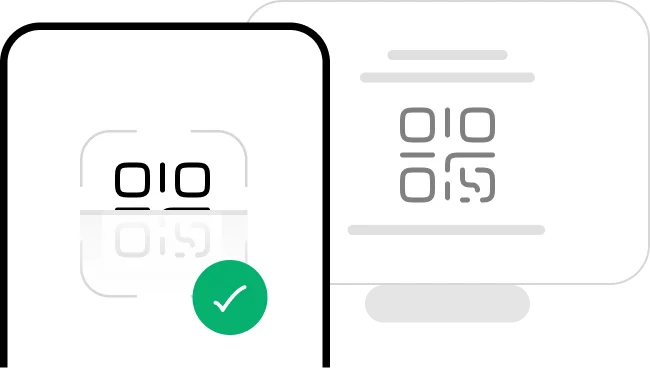
Choose Install with QR Code if you have the code open on your laptop or another phone.
eSIM Manual code
1234 5678 9012
Choose Install Manually if you'd rather type in the activation code from your HelloRoam email.
Pick your installation method
A few things to know before you scan the QR code:
- •Open the QR code on a second device (laptop or another phone) before you start scanning.
- •Stay on Wi-Fi the entire time. Losing connection mid-install can cause errors.
- •Each QR code works for one scan only. After a successful scan, the code expires.
- •Do not delete the eSIM after you install it. An eSIM is not transferable between devices once installed, so deleting it means losing your plan.
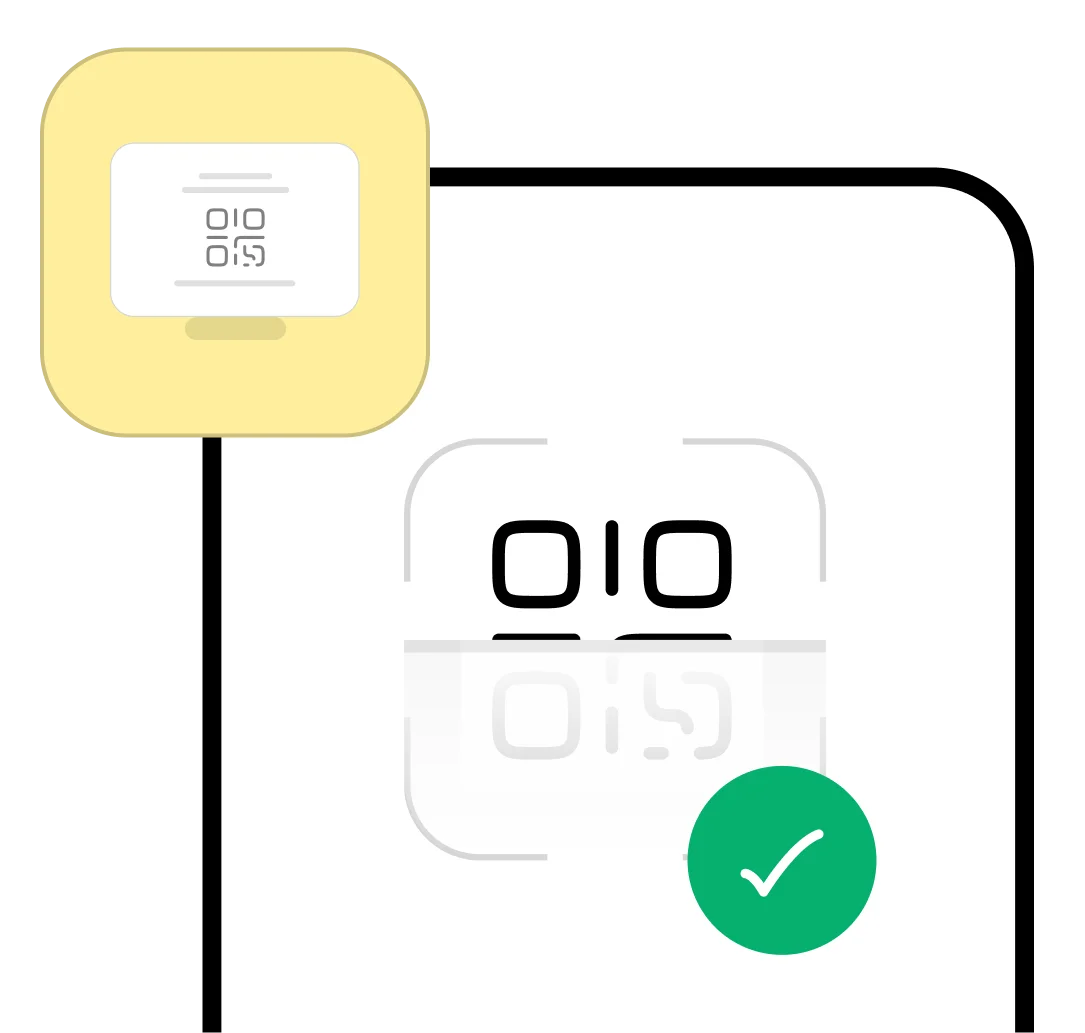
A few things to know before you start the manual install:
- •Each manual activation code is single-use. Don't share it and don't enter it twice.
- •Keep a stable Wi-Fi connection the whole time. A dropped connection can interrupt the install.
- •This eSIM locks to your device once you install it. An eSIM is not transferable to another phone, so do not remove it unless you no longer need it.

Enter Activation Code
1234 5678 9012

Get started in 3 easy steps
Our team is available 24/7 if you need help during setup.
- 01Open your email
Open your email on a second device and find the QR code HelloRoam sent you after purchase.
- 02Get your phone ready
Your Android phone must be unlocked, connected to Wi-Fi, and charged before you begin.
- 03Follow the steps
Work through each screen prompt to finish installing your eSIM profile in about 2 minutes.
Install eSIM via QR Code
Install eSIM via Activation Code

Settings
This phone is ready to activate a HelloRoam eSIM.

1. Settings
Open your phone Settings and go to Connections. Make sure you have a working internet connection before you continue.

Connections
2. SIM card Manager
Find the SIM card manager in your phone settings to view and manage your eSIM profiles.
Sim manager
Sim cards
eSIMs
Preferred SIMs
3. Add your eSIM
Tap the option to add a new eSIM to your device. You can scan a QR code or type in the code manually.
Add eSIM
Other ways to add SIMs
4. Installation Options
Choose how you want to install your eSIM: scan a QR code or enter the activation details by hand.
Scan the QR code from your provider

5. Scan the QR code
Point your camera at the QR code in your HelloRoam email to scan and load your eSIM profile automatically.
Add eSIM
Add HelloRoam eSIM?
This will connect your phone to the HelloRoam network.
6. Add mobile plan
Review the mobile plan details and tap Add mobile plan to finish installing your eSIM.
Sim manager
Sim cards
eSIMs

Preferred SIMs
7. Label and setup eSIM
Name your eSIM (for example, HelloRoam) and set it as your preferred mobile data line.
Install eSIM via QR Code
Install eSIM via Activation Code
Settings
This phone is ready to activate a HelloRoam eSIM.
1. Settings
Open your phone Settings and go to Connections. Make sure you have a working internet connection before you continue.
Connections
2. SIM card Manager
Find the SIM card manager in your phone settings to view and manage your eSIM profiles.
Sim manager
Sim cards
eSIMs
Preferred SIMs
3. Add your eSIM
Tap the option to add a new eSIM to your device. You can scan a QR code or type in the code manually.
Add eSIM
Other ways to add SIMs
4. Installation Options
Choose how you want to install your eSIM: scan a QR code or enter the activation details by hand.
Add using activation code
The code looks like this:
• https://operator.sm-dp.com
• LPA:1 $operator.com$ABCDE-12345
5. Enter the code
Copy the manual installation code from your HelloRoam email and paste it in. Tap Continue and wait a few seconds.
Add eSIM
Add HelloRoam eSIM?
This will connect your phone to the HelloRoam network.
6. Add mobile plan
Review the mobile plan details and tap Add mobile plan to finish installing your eSIM.
Sim manager
Sim cards
eSIMs
Preferred SIMs
7. Label and setup eSIM
Name your eSIM (for example, HelloRoam) and set it as your preferred mobile data line.

Activate your eSIM on Android

Before you start:
- •Wait until you land at your destination before activating your eSIM. eSIM activation is automatic once you land and turn Data Roaming on.
- •Switch on airplane mode, then reconnect to Wi-Fi so your home carrier does not charge you.
- •Save this guide as a PDF so you can follow along without an internet connection.
Open Settings, tap Mobile Data, and find your HelloRoam eSIM profile in the list.

Turn on your eSIM line and switch on Data Roaming so your phone connects when you land.
Your eSIM is live. You're connected and ready to use data in 185+ countries.
Done. Your plan is active. Use data right away with no extra charges.
Start using data right now. No extra charges, no surprises.

What is an eSIM? How it works in 2 minutes.
An eSIM is a digital SIM card built into your Android phone. It replaces a physical SIM. Scan a QR code to install in minutes. No card swap, no store visit. Step-by-step guide

Unlimited data

Up to 5G support

Data sharing

1.
Check your signal icon. At least one bar means your eSIM is connected and working.
2.
Go to Settings > Network & Internet > SIMs, tap HelloRoam, and confirm Roaming is switched on.

Samsung Galaxy Tips Worth Knowing
- OneUI 6.0+ UsersOn OneUI 6.0 and newer, SIM Manager may appear as 'SIM card manager' under Settings > Connections. The steps are the same either way.
- Dual eSIM SupportGalaxy S24 and S25 series support two active eSIMs at the same time. Keep your US number live while running a HelloRoam travel data plan in Europe or Asia.
- Update FirstRunning the latest OneUI version cuts down on eSIM errors. Update your Galaxy before you travel.
FAQs
Samsung Galaxy phones with eSIM support include the S20, S21, S22, S23, S24, and S25 series (Plus, Ultra, and FE variants), the Z Fold 2 through Z Fold 6, the Z Flip through Z Flip 6, and the Note 20 series. These are the most popular eSIM compatible phones in the Samsung lineup. Use this as your sim card compatibility chart samsung summary: S-series and Z-series support eSIM across the board, while most A-series, M-series, and J-series do not. The Samsung A16 eSIM is a notable A-series exception with full eSIM hardware. Your phone needs OneUI 3.0 or later (Android 11 or higher). Check your model specs before you buy.
Samsung Galaxy SIM Manager lives at Settings > Connections > SIM Manager on most Galaxy phones. On OneUI 6.0 and newer, it may appear as SIM card manager under the same path. On the Galaxy S25, S25 Plus, and S25 Ultra you can also reach it through Settings > SIM card manager directly. If you can't find it, type SIM Manager in the Settings search bar and it shows up in seconds.
Adding a HelloRoam eSIM to Samsung without a QR code uses manual entry via Settings. Open Settings, go to Connections, tap SIM Manager, tap Add eSIM, then choose Enter activation code manually. Type the SM-DP+ address and activation code from your HelloRoam confirmation email. Both codes arrive in the same email within 5 minutes of purchase. This method works on every eSIM Samsung phone in the esim phone list from Galaxy S20 onward.
Samsung Galaxy S24, S24 Plus, and S24 Ultra all support dual eSIM, so two eSIM profiles can run at the same time with no physical SIM card required. The Galaxy S25 series also supports dual eSIM. Compared to a physical SIM, an eSIM vs physical SIM setup gives you more flexibility: you can switch between travel plans without swapping cards, and you avoid visiting a store to get a local SIM. This is a great setup for US travelers heading to Mexico or Japan who want to keep their home number active while running a local data plan. Manage both lines at Settings > Connections > SIM Manager.
Try these 4 fixes when your Samsung won't read the eSIM QR code: update OneUI, confirm the phone is carrier-unlocked, clean the camera lens, and scan in good lighting at about 6 inches distance. If none work, use manual entry instead. Open SIM Manager, tap Add eSIM, choose Enter code manually, and type the SM-DP+ address and activation code from your HelloRoam email. HelloRoam support chat responds in under 2 hours. eSIM QR code not working is one of the most common install questions on Galaxy devices.
Popular eSIM Destinations








We're here whenever you need us.