

Table of content
- Quick Answer: siri not working
- Quick Answer: Siri Not Working at a Glance
- Why Is Siri Suddenly Not Working?
- The iOS 26 Hey Siri Bug
- Focus Modes Are Silent Blockers
- The Restart Myth
- How to Fix Siri Not Working: 10 Proven Steps
- Is There a Problem with Siri Right Now?
- Siri Not Working After an eSIM Switch or Carrier Change
- How Do I Activate Siri Again?
- Set up Hey Siri voice recognition from scratch
- How to Reset Siri When Nothing Else Is Working?
Quick Answer: siri not working
Siri stops working for one of three reasons: it's been disabled in Settings, the device has no live data connection, or a software bug is blocking the assistant from loading. Check Settings > Siri and Search first, then confirm Wi-Fi or cellular data is active support.apple.com.
If the basics look clean, two other culprits cover most remaining cases. An active Focus mode, including Do Not Disturb, silently suppresses Siri without any onscreen warning. iOS 26 shipped with a janky Hey Siri silence bug where the wake word stops triggering after a long lock screen idle. A full power-off restart clears it.
A simple screen wake doesn't.
Server outages are the third possibility. Apple handles Siri's language processing in the cloud, so a backend failure affects every device at once. The check is crisp: pull up status.apple.com before assuming the fix is on your end.
Most cases resolve in under two minutes.
Quick Answer: Siri Not Working at a Glance
Three triggers account for the vast majority of Siri failures: the assistant has been toggled off in Settings, an active Focus profile is blocking voice input, or the phone has no data connection. Each resolves in under two minutes.
iOS 26 added a specific wrinkle. A documented bug causes Hey Siri to go silent on select iPhone models after an extended lock screen idle. The wake word stops registering entirely. A full power-off restart clears the session state behind it.
One detail that catches people off guard: Siri's response volume is a lean, separate slider from your ringer volume. It sits in Settings > Siri and Search > Siri Responses and defaults low on fresh setups. Full ringer, fully working assistant, zero audible response.
Apple server outages cluster reliably in the hours after major iOS releases. If every device-level step fails on a launch day, that's the likely explanation.
Which cause is yours? The checklist below narrows it down.
Why Is Siri Suddenly Not Working?
Sudden Siri failure almost always follows a recent iOS update or a Settings change that happened in the background without a visible prompt. Siri doesn't stop working randomly. Something shifted.
Here's what most troubleshooting guides skip: Siri requires live internet, not just an active voice plan. The assistant sends queries to Apple's servers for natural language processing, then returns a response. Drop the data connection and Siri goes quiet, even with full cellular bars on screen. That's the most finicky dead-end in the whole diagnostic process, because bars look fine and the problem stays invisible.
The iOS 26 Hey Siri Bug
iOS 26 introduced a specific failure on select iPhone models. After the screen sits locked for an extended period, Hey Siri stops registering the wake word entirely. The microphone still functions. Voice Memos records without issue. But the always-on listener resets incorrectly after a deep idle state. A full power-off restart (hold both buttons, slide to power off, wait 30 seconds, then boot up) resolves it. A sleep/wake cycle doesn't.
Focus Modes Are Silent Blockers
An active Focus profile, including default Do Not Disturb or a custom Work mode, suppresses Siri without any visible indicator. The screen looks normal. The assistant simply doesn't respond. Driving Focus is especially clunky here, as it activates automatically on some devices without an explicit user confirmation tap.
The Restart Myth
Restarting is the most common advice online. It doesn't always work. An iOS bug tied to corrupted session data requires a software update or targeted steps to clear. A server outage can't be fixed by a restart at all.
One trigger that almost no guide addresses: activating a travel eSIM or switching the default data line on a dual-SIM iPhone can reset Siri's cellular routing. Travelers setting up an international data plan before departure can Browse All eSIM Plans to compare options. After any eSIM activation, go to Settings > Cellular > Cellular Data and confirm the new line handles data. Until that assignment is correct, Siri stays silent on the new connection. Region settings matter too: some Siri features, including transit directions and local reservations, are country-specific and stop working if the iOS region setting no longer matches your physical location.
Cause identified? The right fix becomes obvious fast.
How to Fix Siri Not Working: 10 Proven Steps
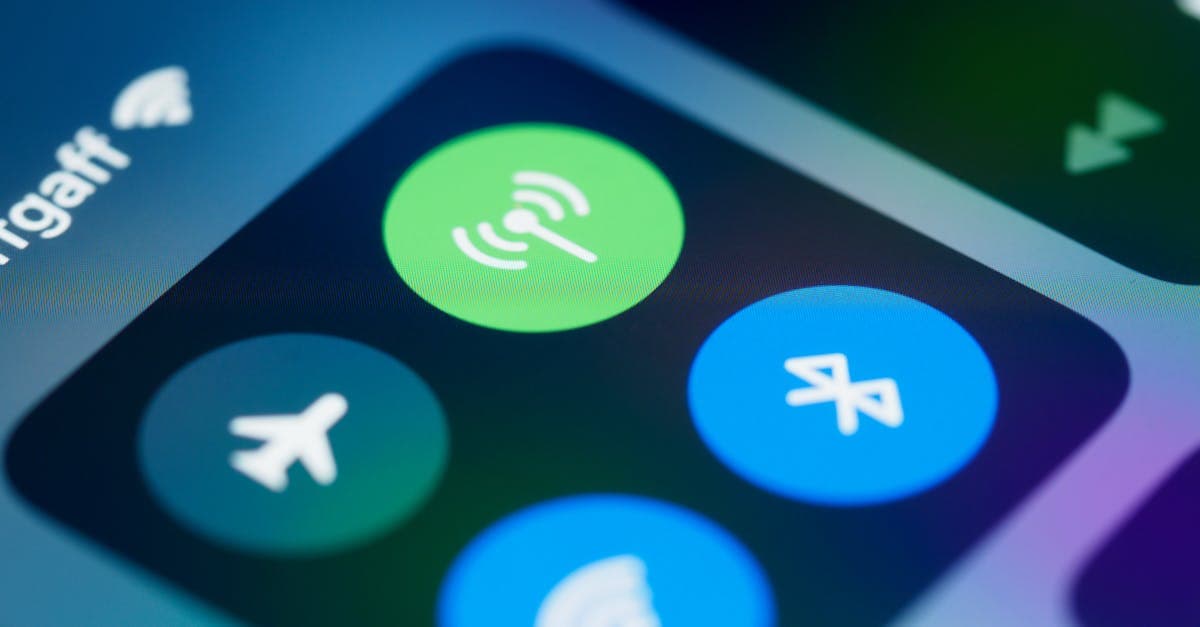
Ten steps cover the full diagnostic path when Siri stops responding, running from a dead-simple Settings check to a network reset that should be a last resort. Work through them in order. Skipping ahead to step nine because you tried step one last week is how a two-minute fix becomes an hour of frustration.
The first five steps take under two minutes total. If Siri's back by step three, stop there.
- Enable Siri in Settings. Go to Settings > Siri and Search. Toggle on "Press Side Button for Siri," "Allow Siri When Locked," and "Listen for 'Hey Siri'." If any of these are off, Siri won't respond to that input method, full stop support.apple.com.
- Toggle airplane mode. Flip it on, wait five seconds, flip it off. This resets the radio stack and forces a fresh cellular and Wi-Fi handshake. If a network glitch followed an eSIM activation or a carrier switch, this clears it whistleout.com. Note: in airplane mode with Wi-Fi calling enabled, Siri can still function over Wi-Fi, but only if the assistant was already active before airplane mode engaged.
- Disable any active Focus mode. Open Control Center and look for a crescent or Focus icon. Tap it, turn off the active profile. Do Not Disturb, Driving, and custom Work modes all suppress Siri without any notification or confirmation yournavi.com.
- Disconnect Bluetooth earbuds. Siri's audio routes to the last connected device. AirPods, Beats, or any paired headset can pull responses silently while the phone speaker stays quiet. Go to Settings > Bluetooth to disconnect, or just remove the earbuds and test again.
- Adjust Siri's response volume. Go to Settings > Siri and Search > Siri Responses. The volume slider here is completely separate from ringer volume. It can sit at zero with no indication anywhere else on the phone. Slide it up and test.
- Retrain Hey Siri. If you've changed your voice significantly, set up a new device, or restored from a backup, Siri's stored voice model may no longer match your current voice pattern. Go to Settings > Siri and Search, disable "Listen for 'Hey Siri'," then re-enable it. The device walks you through a fresh voice setup, which takes about 90 seconds support.apple.com.
- Full power-off restart. Hold the side button and a volume button, slide to power off, wait a full 30 seconds, then restart. This clears cached Siri session data. A sleep/wake cycle doesn't reach that cache.
- Install pending iOS updates. Open Settings > General > Software Update. Apple ships Siri daemon patches in point releases. The iOS 26 Hey Siri silence bug carries a patch in the current update queue, and leaving the update pending keeps the problem active discussions.apple.com.
- Check Screen Time restrictions. Go to Settings > Screen Time > Content and Privacy Restrictions > Siri and Dictation. The setting should read "Allow." Parental controls and managed device profiles frequently disable Siri at this level support.apple.com. The toggle is easy to miss unless you know to look there.
- Reset network settings. Settings > General > Transfer or Reset iPhone > Reset > Reset Network Settings. This wipes all saved Wi-Fi passwords and any custom APN configurations alongside corrupted cellular state. It fixes Siri failures rooted in bad network settings, but it costs you every saved Wi-Fi password on the device. Write those down first.
Step 10 is the last software option before hardware diagnostics. If Siri still won't respond after a network reset, the issue is either a hardware fault or an active Apple server problem. A Genius Bar appointment or an Apple Support call is the appropriate next move.
Steps exhausted? Check if Apple's servers are the real culprit.
Is There a Problem with Siri Right Now?

Check status.apple.com under "Siri and Search" before touching your device settings. Apple updates that page in real time during active outages. DownDetector layers on crowdsourced failure reports broken down by region and time, giving you a more precise geographic picture than Apple's own status dashboard.
Most outages clear within one to four hours. That's faster than people expect once they realize the issue isn't on their end.
Here's the insider detail most support articles skip: large Siri outages tend to cluster around iOS release days and Apple event announcements, when Apple's server load spikes sharply. If you're dealing with Siri not working and a major iOS update just landed, the culprit is almost certainly upstream of your phone. Wait before resetting anything.
The trickier scenario is a clean green status with a Siri that still won't respond.
Green on Apple's page means only that the service is running at Apple's own servers. It says nothing about your carrier settings, active Focus modes, or local network configuration. A globally healthy Siri can sit completely silent on one iPhone caught in a T-Mobile dead zone or a misconfigured network profile.
DownDetector's regional heat map is the sharper diagnostic tool here. A cluster of failure reports centered on your metro area points toward a carrier or ISP issue, not Apple's infrastructure. Zero reports near you? The fault is local to your device, and the diagnostic steps from the prior section apply directly.
Device confirmed as the source? The eSIM angle surprises most users.
Siri Not Working After an eSIM Switch or Carrier Change
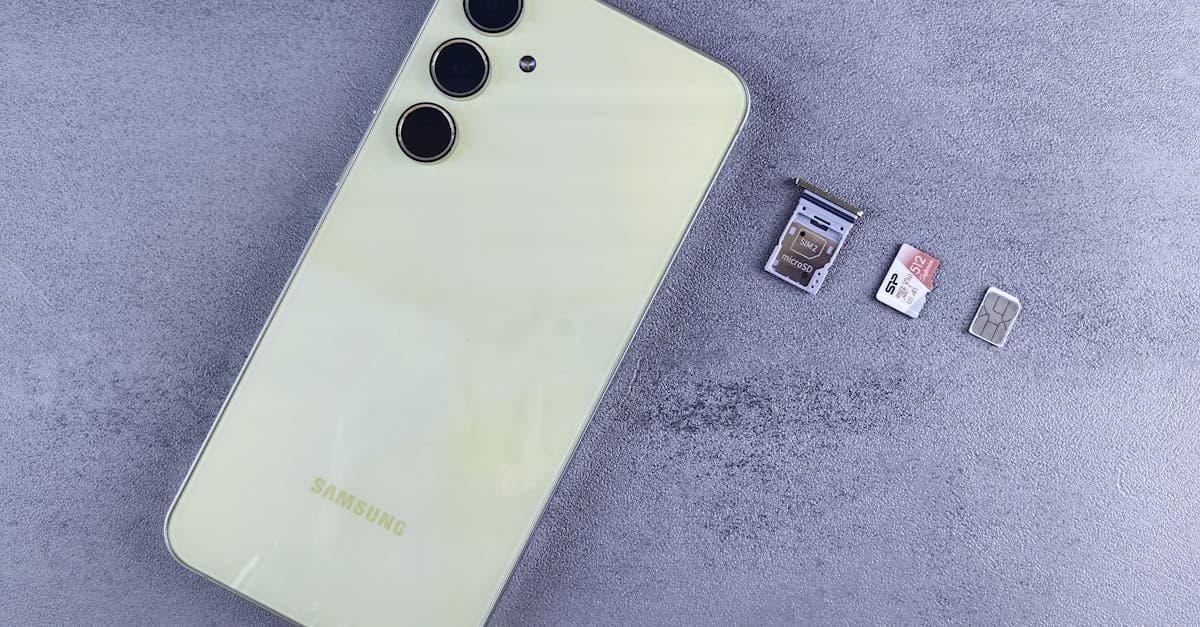
Switching an eSIM profile resets carrier settings, and that single action can sever the data connection Siri needs to function, even when voice calls still work fine. The phone looks operational: calls connect, texts arrive, signal bars are full. Siri's silent. The disconnect is that Siri runs on data, not voice service, and a carrier settings reset doesn't automatically restore data routing.
On dual-SIM iPhones, the problem compounds. iOS routes Siri's data requests through the primary line's carrier settings by default. Swap in a travel eSIM as a secondary line, and the primary line's APN (Access Point Name) configuration may no longer match the active carrier. Siri stops responding while everything else appears functional.
International roaming sharpens the edge case further. Some carriers block data roaming at the account level while still permitting voice calls. Siri pings Apple's servers, gets no response, and fails silently. No error message, just a spinning indicator.
The setup that catches the most travelers: airplane mode enabled, WiFi calling active. Calls work through the hotel network. Siri doesn't. WiFi calling routes voice over IP, but Siri needs a separate live data channel, and airplane mode suppresses it unless you manually re-enable cellular data.
The fix runs through one path: Settings > General > Transfer or Reset iPhone > Reset Network Settings. This clears every cached APN configuration and carrier preference. After the reset, reconnect to Wi-Fi and toggle cellular data roaming back on. Siri typically recovers within seconds of regaining a data connection.
HelloRoam includes post-activation data routing guides with its eSIM plans, walking through the APN settings for each supported network. That's a practical resource when you need to rebuild your data configuration quickly after a reset.
One last step: check Settings > Cellular, find Siri in the app list, and confirm its cellular data toggle is on. A network reset can flip that off independently.
Connectivity restored? Voice reactivation is the next step.
How Do I Activate Siri Again?
No restart required. Siri reactivates the moment you toggle "Listen for 'Hey Siri'" on at Settings > Siri and Search. That single step resolves most reactivation cases, even after an iOS update or a carrier settings reset support.apple.com.
Side Button (Face ID models) and Home Button (older Touch ID models) still invoke Siri manually, even with "Hey Siri" switched off. If you only need on-demand access and don't want always-listening active, the manual invoke is the leaner path.
Screen Time changes the equation. If Siri was disabled through parental controls or Screen Time restrictions, the toggle appears grayed out and won't move. You'll need the Screen Time PIN to unlock it at Settings > Screen Time > Content and Privacy Restrictions > Siri and Dictation.
Two fast checks once Siri is back on: confirm Siri has cellular data access under Settings > Cellular, and verify your active Focus profile isn't silencing Siri requests. Both can quietly disable the assistant even after re-enabling it in Settings > Siri and Search.
Enabled but not recognizing your voice? Retrain it next.
Set up Hey Siri voice recognition from scratch
Toggle "Hey Siri" off, then back on. iOS immediately launches a five-phrase voice training session the moment the switch flips support.apple.com. Speak each prompt at your normal conversational volume, not louder. The system calibrates to how your voice sounds in everyday use, not a performance.
Do this in a quiet room. Background noise during training degrades recognition accuracy, sometimes enough to require a complete redo.
One detail most users miss: your voice model lives entirely on your device. It doesn't sync through iCloud, which means a replacement iPhone always requires a fresh training pass, even after restoring from a complete backup.
How to Reset Siri When Nothing Else Is Working?
A three-step escalation handles Siri failures that survive everything else. Start with a soft reset. If that fails, move to Reset All Settings. A full device restore sits at the bottom of the ladder, a 30-to-60-minute commitment that rarely proves necessary.
Reset option comparison:
For the soft reset, disable every toggle in Settings > Siri and Search: Listen for "Hey Siri," Press Side Button for Siri, and Allow Siri When Locked. Restart the iPhone, then re-enable each toggle one by one. That sequence flushes corrupted session data without changing anything else on the device yournavi.com.
Reset All Settings is the cleaner fix when a carrier switch or iOS update scrambled your preferences. It's disruptive but not destructive.
Hardware is a category apart.
A mic array failure won't respond to any software reset. If Siri registers no audio at all even after clearing every preference, the fault likely sits in the physical hardware. An Apple Genius Bar appointment is the right call: a technician inspects the microphone components directly and can run hardware diagnostics no app replicates.
Apple Support chat is available 24 hours and can escalate cases that survive every reset option listed above.
Reviewed by HelloRoam's editorial team. Last updated: 08 May 2026.
Get Connected Before You Go





Frequently Asked Questions
Siri suddenly stops working because it was disabled in Settings, an active Focus mode is silently blocking it, or there is no live data connection. A recent iOS update can also introduce bugs that interrupt the assistant.
Go to Settings > Siri and Search, disable Listen for Hey Siri, then re-enable it to retrain your voice. For deeper issues, perform a full power-off restart or use Reset Network Settings as a last resort.
Check status.apple.com under Siri and Search for real-time outage updates. DownDetector shows crowdsourced regional reports. Large outages commonly cluster around major iOS release days when Apple server load spikes.
Go to Settings > Siri and Search and toggle on Press Side Button for Siri, Allow Siri When Locked, and Listen for Hey Siri. No restart is required once the toggles are re-enabled.
Full signal bars show voice coverage, but Siri requires a live data connection for cloud processing. The assistant stays silent even with strong cellular signal if mobile data is disabled or restricted.
Yes, active Focus profiles including Do Not Disturb, Driving, and custom Work modes silently suppress Siri with no visible warning. Open Control Center and disable the active profile to restore Siri.
Go to Settings > Siri and Search, disable then re-enable Listen for Hey Siri to retrain your voice model. If the iOS 26 silence bug is the cause, a full power-off restart lasting at least 30 seconds is required.
Siri has a separate response volume slider found in Settings > Siri and Search > Siri Responses, independent of ringer volume. It can default to zero on fresh setups, making Siri functional but completely inaudible.
Yes, Siri routes audio to the last connected Bluetooth device. If earbuds are paired but not worn, responses play silently to the headset. Disconnect Bluetooth in Settings or remove the earbuds and test again.
Yes, activating a travel eSIM resets carrier settings and can cut the data connection Siri needs, even while calls still work fine. Confirm the correct line is assigned for data in Settings > Cellular after any eSIM switch.
Reset network settings via Settings > General > Transfer or Reset iPhone > Reset > Reset Network Settings to clear corrupted APN configurations. Then confirm the correct SIM line handles data in Settings > Cellular.
Yes, parental controls and managed device profiles can block Siri at the system level. Check Settings > Screen Time > Content and Privacy Restrictions > Siri and Dictation and confirm the setting reads Allow.
Most Siri outages resolve within one to four hours. They cluster most frequently around major iOS release days when Apple's server load spikes sharply. Monitor status.apple.com for live resolution updates.
Resetting network settings clears corrupted APN configurations and cellular state that can block Siri, but it also erases all saved Wi-Fi passwords. Write those down first and treat it as a last software resort.
iOS 26 introduced a bug where Hey Siri stops registering the wake word after an extended lock screen idle. A sleep and wake cycle does not clear it. A full power-off restart of at least 30 seconds resolves the issue.
Sources
- If Siri isn't working on your iPhone or iPad — support.apple.com
- Hey Siri Not Working? Here's How to Fix It — yournavi.com
- Why Is "Hey Siri" Not Working? 10 Ways to Fix It — whistleout.com
- How do I fix Siri not working after iOS 18.4.1 update? — discussions.apple.com